1
 →
→
Use LLMs and LLM Vision (OCR) to handle paperless-ngx - Document Digitalization powered by AI
icereed/paperless-gpt is an open-source project on GitHub, mainly written in Go. Use LLMs and LLM Vision (OCR) to handle paperless-ngx - Document Digitalization powered by AI It currently holds 2,704 stars and 209 forks with 0 open issues, and was last pushed on an unknown date (repository created unknown).
AI Homed tracks it on the Local & On-Device AI board.

💡 Maintained by Icereed. Proudly supported by BubbleTax.de – automated, BMF-compliant tax reports for Interactive Brokers traders in Germany.
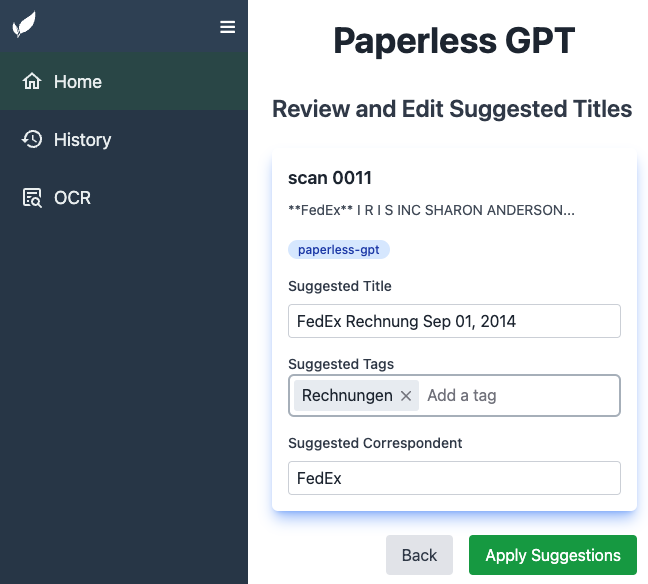
--- paperless-gpt seamlessly pairs with [paperless-ngx][paperless-ngx] to generate AI-powered document titles and tags, saving you hours of manual sorting. While other tools may offer AI chat features, paperless-gpt stands out by supercharging OCR with LLMs-ensuring high accuracy, even with tricky scans. If you're craving next-level text extraction and effortless document organization, this is your solution.
https://github.com/user-attachments/assets/bd5d38b9-9309-40b9-93ca-918dfa4f3fd4
❤️ Support This Project
If paperless-gpt is helping you organize your documents and saving you time, please consider sponsoring its development. Your support helps ensure continued improvements and maintenance!
---
1. LLM-Enhanced OCR Harness Large Language Models (OpenAI or Ollama) for better-than-traditional OCR—turn messy or low-quality scans into context-aware, high-fidelity text.
2. Use specialized AI OCR services
4. Supports reasoning models in Ollama
Greatly enhance accuracy by using a reasoning model like qwen3:8b. The perfect tradeoff between privacy and performance! Of course, if you got enough GPUs or NPUs, a bigger model will enhance the experience.
5. Automatic Correspondent Generation Automatically identify and generate correspondents from your documents, making it easier to track and organize your communications.
6. Automatic Custom Field Generation Extract and populate custom fields from your documents. Configure which fields to target and how they should be filled. This feature must be enabled in the settings, and you must select at least one custom field for it to function. Three write modes are available:
7. Extensive Customization
default_prompts and prompts directory structure, ensuring your customizations are persistent.9. Unified Web UI
---
v3.0.0-beta.rc1). paperless-gpt only uses the stable api/documents/, api/tags/, api/correspondents/, api/custom_fields/ and api/document_types/ endpoints, none of which have documented breaking changes in the v3 migration guide.gpt-4o or gpt-3.5-turbo.qwen3:8b.paperless-gpt has no built-in authentication. Its web UI and /api/* endpoints are open to anyone who can reach the port — by default it listens on all interfaces (LISTEN_INTERFACE defaults to :8080), so a plain -p 8080:8080 (as in the example below) exposes it to your whole LAN/VPN, not just localhost. Anyone who can reach it can rewrite documents in your connected paperless-ngx instance, trigger LLM/OCR jobs against your API keys, and change settings — with zero credentials required.
Do not expose it directly to the internet or an untrusted network. Put it behind a reverse proxy that adds authentication (e.g. Authelia, Authentik, a Basic Auth layer), restrict it to a VPN/Tailscale network, or otherwise limit who can reach the port.
Here's an example docker-compose.yml to spin up paperless-gpt alongside paperless-ngx:
services:
paperless-ngx:
image: ghcr.io/paperless-ngx/paperless-ngx:latest
# ... (your existing paperless-ngx config)
paperless-gpt:
# Use one of these image sources:
image: icereed/paperless-gpt:latest # Docker Hub (upstream)
# image: ghcr.io/icereed/paperless-gpt:latest # GitHub Container Registry (upstream)
# image: ghcr.io/hensing/paperless-gpt:latest # This fork's GHCR image
environment:
PAPERLESS_BASE_URL: "http://paperless-ngx:8000"
PAPERLESS_API_TOKEN: "your_paperless_api_token"
PAPERLESS_PUBLIC_URL: "http://paperless.mydomain.com" # Optional
MANUAL_TAG: "paperless-gpt" # Optional, default: paperless-gpt
AUTO_TAG: "paperless-gpt-auto" # Optional, default: paperless-gpt-auto
FAIL_TAG: "paperless-gpt-failed" # Optional, default: paperless-gpt-failed. Applied to documents whose update is rejected by paperless-ngx or whose OCR keeps failing (see OCR_MAX_RETRIES), so they don't get re-processed in a loop. Auto-created at startup.
# LLM Configuration - Choose one:
# Option 1: Standard OpenAI
LLM_PROVIDER: "openai"
LLM_MODEL: "gpt-4o"
OPENAI_API_KEY: "your_openai_api_key"
# Option 2: Mistral
# LLM_PROVIDER: "mistral"
# LLM_MODEL: "mistral-large-latest"
# MISTRAL_API_KEY: "your_mistral_api_key"
# Option 3: Azure OpenAI
# LLM_PROVIDER: "openai"
# LLM_MODEL: "your-deployment-name"
# OPENAI_API_KEY: "your_azure_api_key"
# OPENAI_API_TYPE: "azure"
# OPENAI_BASE_URL: "https://your-resource.openai.azure.com"
# Option 4: Ollama (Local)
# LLM_PROVIDER: "ollama"
# LLM_MODEL: "qwen3:8b"
# OLLAMA_HOST: "http://host.docker.internal:11434"
# OLLAMA_CONTEXT_LENGTH: "8192" # Sets Ollama NumCtx (context window)
# LLM_MAX_TOKENS: "256" # Sets Ollama num_predict (output-token budget)
# OLLAMA_KEEP_ALIVE: "10m" # Keeps the model loaded between metadata requests
# OLLAMA_THINK: "false" # true/false, or low/medium/high for supported models
# OLLAMA_HEADERS: "Authorization=Bearer mytoken" # Optional headers for reverse-proxy auth
# TOKEN_LIMIT: 1000 # Recommended for smaller models
# Option 5: Anthropic/Claude
# LLM_PROVIDER: "anthropic"
# LLM_MODEL: "claude-sonnet-4-5"
# ANTHROPIC_API_KEY: "your_anthropic_api_key"
# Optional LLM Settings
# LLM_LANGUAGE: "English" # Optional, default: English
# OCR Configuration - Choose one:
# Option 1: LLM-based OCR
OCR_PROVIDER: "llm" # Default OCR provider
VISION_LLM_PROVIDER: "ollama" # openai, ollama, mistral, or anthropic
VISION_LLM_MODEL: "minicpm-v" # minicpm-v (ollama) or gpt-4o (openai) or claude-sonnet-4-5 (anthropic/claude)
OLLAMA_HOST: "http://host.docker.internal:11434" # If using Ollama
# OCR Processing Mode
OCR_PROCESS_MODE: "image" # Optional, default: image, other options: pdf, whole_pdf
PDF_SKIP_EXISTING_OCR: "false" # Optional, skip OCR for PDFs with existing OCR
# Option 2: Google Document AI
# OCR_PROVIDER: 'google_docai' # Use Google Document AI
# GOOGLE_PROJECT_ID: 'your-project' # Your GCP project ID
# GOOGLE_LOCATION: 'us' # Document AI region
# GOOGLE_PROCESSOR_ID: 'processor-id' # Your processor ID
# GOOGLE_APPLICATION_CREDENTIALS: '/app/credentials.json' # Path to service account key
# Option 3: Azure Document Intelligence
# OCR_PROVIDER: 'azure' # Use Azure Document Intelligence
# AZURE_DOCAI_ENDPOINT: 'your-endpoint' # Your Azure endpoint URL
# AZURE_DOCAI_KEY: 'your-key' # Your Azure API key
# AZURE_DOCAI_MODEL_ID: 'prebuilt-read' # Optional, defaults to prebuilt-read
# AZURE_DOCAI_TIMEOUT_SECONDS: '120' # Optional, defaults to 120 seconds
# AZURE_DOCAI_OUTPUT_CONTENT_FORMAT: 'text' # Optional, defaults to 'text', other valid option is 'markdown'
# 'markdown' requires the 'prebuilt-layout' model
# Enhanced OCR Features
CREATE_LOCAL_HOCR: "false" # Optional, save hOCR files locally
LOCAL_HOCR_PATH: "/app/hocr" # Optional, path for hOCR files
CREATE_LOCAL_PDF: "false" # Optional, save enhanced PDFs locally
LOCAL_PDF_PATH: "/app/pdf" # Optional, path for PDF files
PDF_UPLOAD: "false" # Optional, upload enhanced PDFs to paperless-ngx
PDF_REPLACE: "false" # Optional and DANGEROUS, delete original after upload
PDF_COPY_METADATA: "true" # Optional, copy metadata from original document
PDF_OCR_TAGGING: "true" # Optional, add tag to processed documents
PDF_OCR_COMPLETE_TAG: "paperless-gpt-ocr-complete" # Optional, tag name
# Option 4: Docling Server
# OCR_PROVIDER: 'docling' # Use a Docling server
# DOCLING_URL: 'http://your-docling-server:port' # URL of your Docling instance
# DOCLING_IMAGE_EXPORT_MODE: "placeholder" # Optional, defaults to "embedded"
# DOCLING_OCR_PIPELINE: "standard" # Optional, defaults to "vlm"
# DOCLING_OCR_ENGINE: "easyocr" # Optional, defaults to "easyocr" (only used when `DOCLING_OCR_PIPELINE is set to 'standard')
AUTO_OCR_TAG: "paperless-gpt-ocr-auto" # Optional, default: paperless-gpt-ocr-auto
OCR_LIMIT_PAGES: "5" # Optional, default: 5. Set to 0 for no limit.
OCR_MAX_RETRIES: "3" # Optional, default: 3. Failed OCR attempts per document before it is fail-tagged and removed from the queue. Set to 0 to retry forever.
LOG_LEVEL: "info" # Optional: debug, warn, error
volumes:
- ./prompts:/app/prompts # Mount the prompts directory
- ./config:/app/config # Mount the config directory
# For Google Document AI:
- ${HOME}/.config/gcloud/application_default_credentials.json:/app/credentials.json
# For local hOCR and PDF saving:
- ./hocr:/app/hocr # Only if CREATE_LOCAL_HOCR is true
- ./pdf:/app/pdf # Only if CREATE_LOCAL_PDF is true
ports:
- "8080:8080"
deploy:
resources:
reservations:
cpus: '0.01'
memory: 20M
depends_on:
- paperless-ngx
Pro Tip: Replace placeholders with real values and read the logs if something looks off.
1. Clone the Repository
   git clone https://github.com/icereed/paperless-gpt.git
   cd paperless-gpt
prompts Directory
mkdir prompts
docker build -t paperless-gpt .
   docker run -d \
     -e PAPERLESS_BASE_URL='http://your_paperless_ngx_url' \
     -e PAPERLESS_API_TOKEN='your_paperless_api_token' \
     -e LLM_PROVIDER='openai' \
     -e LLM_MODEL='gpt-4o' \
     -e OPENAI_API_KEY='your_openai_api_key' \
     -e LLM_LANGUAGE='English' \
     -e VISION_LLM_PROVIDER='ollama' \
     -e VISION_LLM_MODEL='minicpm-v' \
     -e LOG_LEVEL='info' \
     -v $(pwd)/prompts:/app/prompts \
     -p 8080:8080 \
     paperless-gpt
---
For detailed provider-specific documentation:
paperless-gpt supports four different OCR providers, each with unique strengths and capabilities: OCR_PROVIDER: "llm"
VISION_LLM_PROVIDER: "openai" # or "ollama"
VISION_LLM_MODEL: "gpt-4o" # or "minicpm-v"
  OCR_PROVIDER: "azure"
  AZURE_DOCAI_ENDPOINT: "https://your-endpoint.cognitiveservices.azure.com/"
  AZURE_DOCAI_KEY: "your-key"
  AZURE_DOCAI_MODEL_ID: "prebuilt-read" # optional
  AZURE_DOCAI_TIMEOUT_SECONDS: "120" # optional
  AZURE_DOCAI_OUTPUT_CONTENT_FORMAT:
    "text" # optional, defaults to text, other valid option is 'markdown'
    # 'markdown' requires the 'prebuilt-layout' model
  OCR_PROVIDER: "google_docai"
  GOOGLE_PROJECT_ID: "your-project"
  GOOGLE_LOCATION: "us"
  GOOGLE_PROCESSOR_ID: "processor-id"
  CREATE_LOCAL_HOCR: "true" # Optional, for hOCR generation
  LOCAL_HOCR_PATH: "/app/hocr" # Optional, default path
  CREATE_LOCAL_PDF: "true" # Optional, for applying OCR to PDF
  LOCAL_PDF_PATH: "/app/pdf" # Optional, default path
  OCR_PROVIDER: "docling"
  DOCLING_URL: "http://your-docling-server:port"
  DOCLING_IMAGE_EXPORT_MODE: "placeholder" # Optional, defaults to "embedded"
  DOCLING_OCR_PIPELINE: "standard" # Optional, defaults to "vlm"
  DOCLING_OCR_ENGINE: "macocr" # Optional, defaults to "easyocr" (only used when `DOCLING_OCR_PIPELINE is set to 'standard')
paperless-gpt offers different methods for processing documents, giving you flexibility based on your needs and OCR provider capabilities:
OCR_PROCESS_MODE: "image"OCR_PROCESS_MODE: "pdf"OCR_PROCESS_MODE: "whole_pdf"pdf mode, which processes pages individually.OCR_LIMIT_PAGES does not apply in this mode — the whole point of whole_pdf is to hand the OCR provider the entire document in one shot, so it always processes every page regardless of that setting. Use pdf or image mode if you need a page cap.Different OCR providers support different processing modes:
| Provider | Image Mode | PDF Mode | Whole PDF Mode | |----------|------------|----------|----------------| | LLM-based OCR (OpenAI/Ollama) | ✅ | ❌ | ❌ | | Azure Document Intelligence | ✅ | ❌ | ❌ | | Google Document AI | ✅ | ✅ | ✅ | | Mistral OCR | ✅ | ✅ | ✅ | | Docling Server | ✅ | ✅ | ✅ |
Important: paperless-gpt will validate your configuration at startup and prevent unsupported mode/provider combinations. If you specify an unsupported mode for your provider, the application will fail to start with a clear error message.
When using PDF or whole PDF modes, you can enable automatic detection of existing OCR:
environment:
  OCR_PROCESS_MODE: "pdf" # or "whole_pdf"
  PDF_SKIP_EXISTING_OCR: "true" # Skip processing if existing OCR is detected in the PDF
Note: Not all OCR providers support all processing modes. Some may work better with certain modes than others. Processing as PDF might use more or fewer API tokens than processing as images, depending on the provider. Results may vary based on document complexity and provider capabilities. It's recommended to experiment with different modes to find what works best for your specific documents and OCR provider.
paperless-gpt includes powerful OCR enhancements that go beyond basic text extraction:
Important Note: The PDF text layer generation and hOCR features are currently only supported with Google Document AI as the OCR provider. These features are not available when using LLM-based OCR or Azure Document Intelligence.
paperless-gpt can save both the hOCR files and enhanced PDFs locally:
environment:
# Enable local file saving
CREATE_LOCAL_HOCR: "true" # Save hOCR files locally
CREATE_LOCAL_PDF: "true" # Save generated PDFs locally
LOCAL_HOCR_PATH: "/app/hocr" # Path to save hOCR files
LOCAL_PDF_PATH: "/app/pdf" # Path to save PDF files
volumes:
# Mount volumes to access the files from your host
- ./hocr_files:/app/hocr
- ./pdf_files:/app/pdf
Note: You must mount these directories as volumes in your Docker configuration to access the generated files from your host system.
Due to limitations in paperless-ngx's API, it's not possible to directly update existing documents with their OCR-enhanced versions. As a workaround, paperless-gpt can:
1. Upload the enhanced PDF as a new document 2. Copy metadata from the original document to the new one 3. Optionally delete the original document
```yaml environment: # PDF upload configuration PDF_UPLOAD: "true" # Upload processed PDFs to paperless-ngx PDF_COPY_M
→ →
→ →
→ →
→ →
→ →
→ →
→ →
→