1
 →
→
A 100% offline, fully portable, zero-trace AI (Ollama + Llama 3 + AnythingLLM) that runs natively from a USB drive on Windows and Mac.
techjarves/Portable-AI-USB is an open-source project on GitHub, mainly written in Shell. A 100% offline, fully portable, zero-trace AI (Ollama + Llama 3 + AnythingLLM) that runs natively from a USB drive on Windows and Mac. It currently holds 2,255 stars and 590 forks with 0 open issues, and was last pushed on an unknown date (repository created unknown).
AI Homed tracks it on the Local & On-Device AI board.
[!IMPORTANT]
This repository (Portable Uncensored AI ) is deprecated and is no longer actively maintained.
All active development, features, and bug fixes (including the Windows crash/access violation fixes) have moved to:
### 👉 Uncensored-Local-Studio
Please visit the new repository to download the latest version, report issues, and follow the project's development.
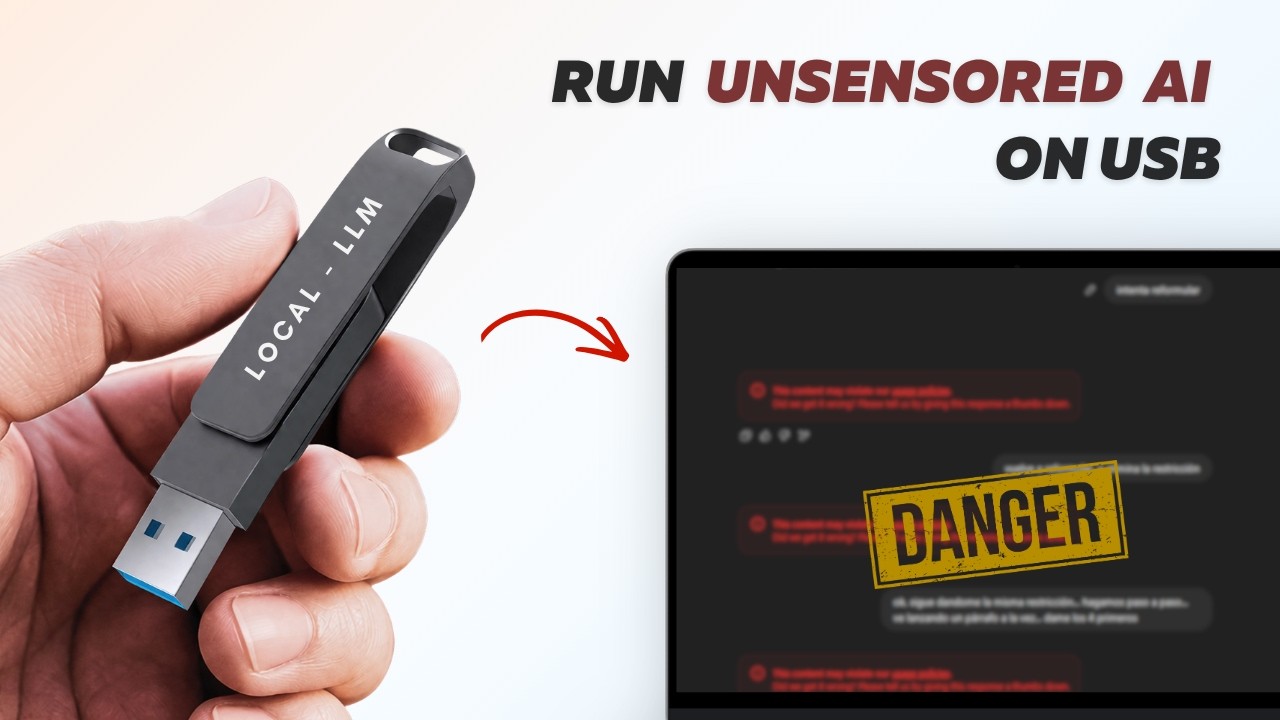
A fully private, portable, uncensored AI assistant that runs 100% from a USB flash drive. No internet needed after setup. No data leaves the USB. Works on Windows, Mac, and Linux.
Now with multi-model support! Choose from 6 curated AI models or bring your own.
During installation, you'll choose which model(s) to download:
| # | Model | Size | Label | Best For | |---|-------|------|-------|----------| | 1 | NemoMix Unleashed 12B | ~7.0 GB | 🔓 UNCENSORED | ⭐ Recommended — best quality uncensored | | 2 | Dolphin 2.9 Llama 3 8B | ~4.9 GB | 🔓 UNCENSORED | Classic uncensored all-rounder | | 3 | Mistral 7B Instruct v0.3 | ~4.1 GB | 🔒 STANDARD | Strong reasoning & coding | | 4 | Qwen 2.5 7B Instruct | ~4.7 GB | 🔒 STANDARD | Great multilingual support | | 5 | Llama 3.2 3B Instruct | ~2.0 GB | 🔒 STANDARD | Lightweight — fast on old PCs | | 6 | Phi-3.5 Mini 3.8B | ~2.2 GB | 🔒 STANDARD | Lightweight — good reasoning | | C | Custom GGUF | Varies | 🎨 CUSTOM | Bring your own HuggingFace model |
🔓 UNCENSORED = No content filters, answers everything
🔒 STANDARD = Normal safety guidelines apply
1. Download this repo and copy ALL files to your USB drive
2. Double-click install.bat on the USB drive
3. Choose your model(s) from the interactive menu
4. Interactive AnythingLLM Setup:
anythingllm folder on your USB drive.The installer automatically retries failed downloads. If it still fails:
1. Download the model manually from the HuggingFace resolved link shown in the console error.
2. Place the .gguf file into the models\ folder on your USB.
3. Re-run install.bat — it will detect the file and skip the download.
Just re-run install.bat and select additional models. Already-downloaded models are automatically skipped.
Want a model not on the list? During install, choose option C and paste any direct .gguf download link from HuggingFace. The installer handles the rest!
By default, the installer configures Ollama with a 4K token limit for optimal performance on most PCs. If you want to adjust this, follow these steps after install script has finished running:
1. Open this folder on your USB drive. anythingllm_data/storage
2. Open the .env file in a text editor.
3. Find the line that says OLLAMA_MODEL_TOKEN_LIMIT=4096 and change 4096 to your desired token limit (e.g., 8192 for 8K tokens).
4. Save the file and restart the AI using the launcher script start-windows.bat or start-mac.command or start-linux.sh.
5. Incase if you re-run the installer script install.bat or install.sh it will reset the token limit back to 4096, so you will need to change it again in the .env file.
6. For mac, you may re-run the start-mac.command script and it will not overwrite the token limit in the .env file, so you can just restart the AI using this script after changing the token limit in the .env file.
start-windows.bat on the USB drive.start-mac.command on the USB drive.1. Open a terminal on your USB drive. 2. Run the launcher: make it executable first:
chmod +x start-linux.sh preflight-check.sh install.sh install-core.sh
bash preflight-check.sh
3. The preflight script checks for everything and executes the install script. 4. open ANYTHING LLM folder and open the appImage there 4. Switch between models: Settings → LLM → select your model. 5. Keep the terminal open while chatting. 6. Press Enter in the terminal to safely shut down.
---
USB Drive/
├── install.bat             ← Run this first (one time only)
├── install-core.ps1        ← Setup script (called by install.bat)
├── start-windows.bat       ← Windows launcher (with auto-cache clearing)
├── start-mac.command       ← Mac launcher
├── ollama/                 ← AI engine (Windows)
├── models/                 ← AI model files (.gguf) & configs
│   ├── installed-models.txt    ← List of installed models
│   └── *.gguf                  ← Model weights
├── anythingllm/            ← Your AI Interface (installed here)
├── installer_data/         ← Temporary installer files (auto-cleaned)
└── anythingllm_data/       ← Your chats & settings (100% portable!)
USB Drive/
├── install.sh             ← Linux / Mac installer
├── preflight-check.sh     ← Linux USB drive health check [ run this first ]
├── install-core.sh        ← Core setup logic (called by install.sh)
└── start-linux.sh         ← Linux launcher
├── ollama/                 ← AI engine (Windows)
├── models/                 ← AI model files (.gguf) & configs
│   ├── installed-models.txt    ← List of installed models
│   └── *.gguf                  ← Model weights
├── anythingllm/            ← Your AI Interface (installed here)
├── installer_data/         ← Temporary installer files (auto-cleaned)
└── anythingllm_data/       ← Your chats & settings (100% portable!)
---
| Models | Minimum USB | Recommended USB | |--------|-------------|-----------------| | 1 lightweight (3B/3.8B) | 16 GB | 16 GB | | 1 recommended (NemoMix 12B) | 16 GB | 32 GB | | 2-3 models | 32 GB | 64 GB | | All 6 presets (~25 GB) | 64 GB | 64 GB |
anythingllm folder on the USB to keep it portable.start-windows.bat again. The script will automatically wipe the old PC's cached paths and fix the run.MIT License — See LICENSE for details.
→ →
→ →
→ →
→ →
→ →
→ →
→ →
→