1
 →
→
Xiryn — the open-source personal agent. Does everything Muse, Grok Bot and Dots do, on your own computer: each agent gets its own Linux desktop in Docker, any model with your keys
SouravBeraAkaSpeed/xiryn is an open-source project on GitHub, mainly written in TypeScript. Xiryn — the open-source personal agent. Does everything Muse, Grok Bot and Dots do, on your own computer: each agent gets its own Linux desktop in Docker It currently holds 146 stars and 22 forks with 0 open issues, and was last pushed on an unknown date (repository created unknown).
AI Homed tracks it on the Today's Trending board, currently at rank #95 with 0 new stars today.
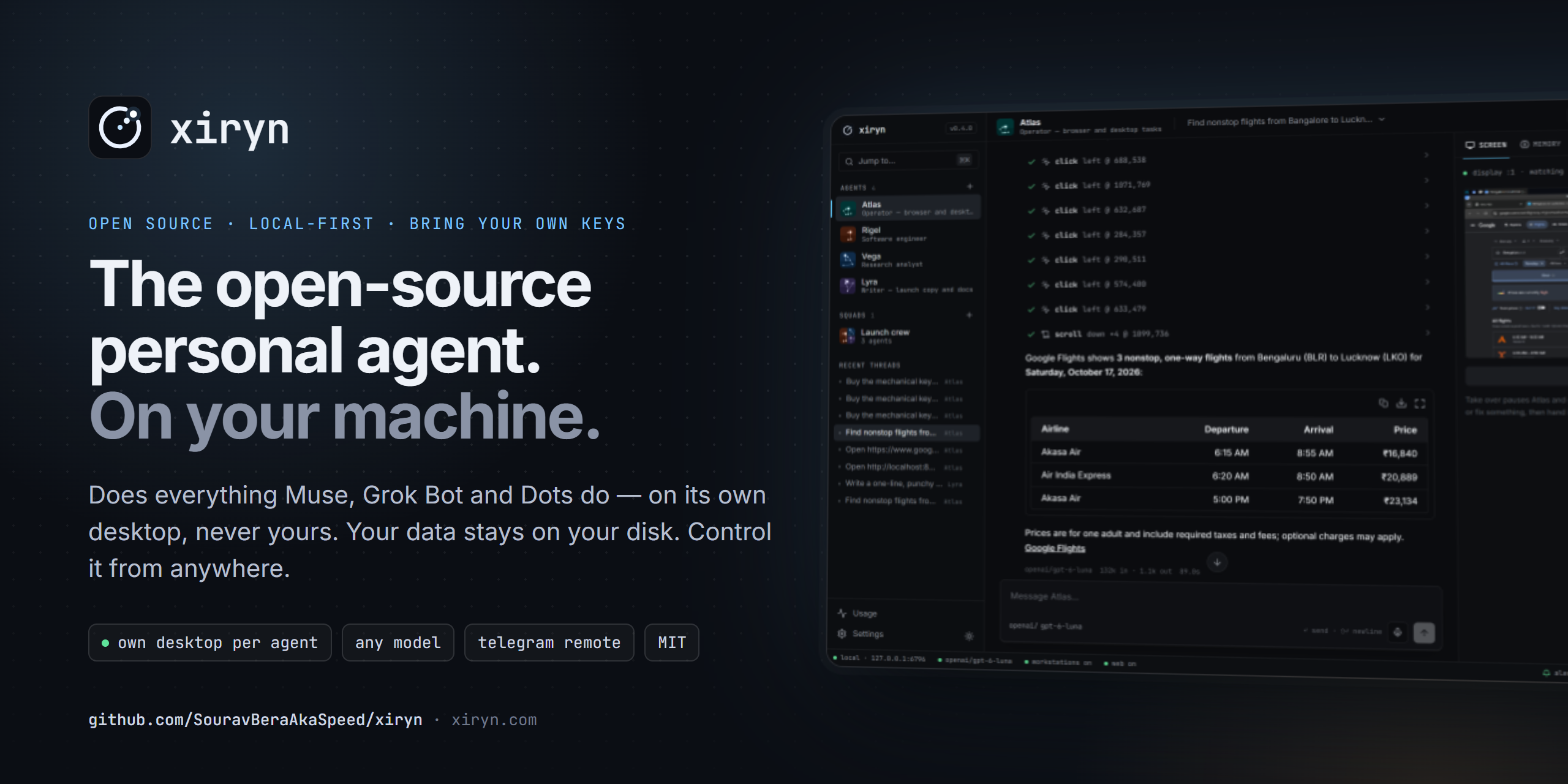
The open-source personal agent. It does everything Muse, Grok Bot and Dots do — on your own computer.
Each agent gets its own Linux desktop in Docker, so it works in the background and never interrupts what you're doing on your laptop.
Your data stays on your disk. Bring any model. Control it from anywhere through Telegram.

xiryn.com · Quick start · Why Xiryn · Compare · Telegram · Architecture · Contribute

https://github.com/user-attachments/assets/e9769ff2-b9ae-426c-a47e-629910b11155
---
This year every major lab shipped a personal agent that works on a cloud machine for you — Muse from Meta, Grok Bot from xAI, Dots from OpenAI. They're impressive. They're also closed, gated behind subscriptions, and they run on someone else's servers with your conversations, your logins and — when they shop for you — your payment details.
Xiryn is the same idea as an open-source personal agent you run yourself. Clone it, add your API keys, and you have a team of agents that each own a Linux desktop in Docker — working in the background while you keep using your laptop — remember what matters, browse and research the web, write and run code, and hand work to one another. Nothing is stored anywhere but your computer, and you can message them from your phone.
One command sets everything up — Git, Node.js, Docker, the agents' desktop — and starts Xiryn:
# macOS / Linux
curl -fsSL https://raw.githubusercontent.com/SouravBeraAkaSpeed/xiryn/main/setup.sh | bash
# Windows (PowerShell)
irm https://raw.githubusercontent.com/SouravBeraAkaSpeed/xiryn/main/setup.ps1 | iex
Have a coding agent? Paste one prompt into Claude Code, Codex or Cursor — it installs everything, asks you for your keys and starts Xiryn.
🔒 Private by design. No account, no sign-up. Conversations, memory, settings and keys live in a single SQLite file on your disk; logins and cards, if you choose to save them, live in an encrypted vault whose key your operating system holds — and agents never see them. Even the agents' machines run on your computer. The only things that leave it are the calls you configure (your model provider, plus Firecrawl or Telegram if you turn them on). Run a local model through Ollama and not even your prompts leave.
🖥️ It never touches your computer. Every agent works on its own sandboxed Linux desktop — a Docker container with a shell, files and a real Chromium — completely separate from your system. It doesn't move your mouse, take over your screen or read your files. Watch a movie, play a game or keep coding while it works. Or watch it work, live, and take the wheel whenever you want.
📱 Control it from anywhere. Pair Telegram in two minutes — scan a QR code and you're done. No public URL, no tunnel, no port forwarding: Xiryn polls Telegram from your machine. Your agents answer from wherever you are, with live progress and screenshots.
🧠 Any model, your keys. OpenAI, Anthropic, Google, xAI, Groq, Mistral, DeepSeek, OpenRouter, Ollama, LM Studio, or any OpenAI-compatible endpoint. Pick a model per agent. No subscription — you pay providers directly for what you use.
🗑️ Disposable machines. Reset an agent and its container is destroyed. Delete it and it's gone. Turn on auto-delete and workstations vanish after every session — while the agent's memory stays safe on your disk.
👥 Agents that work as a team. Put several agents in a squad. Ask any of them; they delegate to whoever fits the job — each on its own model and its own machine.
| | Xiryn | Hosted agents
Muse · Grok Bot · Dots | Local computer-use agents
e.g. OpenClaw |
| --- | --- | --- | --- |
| Source | ✅ Open source (MIT) | ❌ Closed | ✅ Open source (MIT) |
| Where the agent works | Its own sandboxed desktop (Docker, on your machine) | Vendor's cloud computer | Your computer |
| Uses your mouse, screen or files | Never | No — vendor cloud | Yes — shell, files and apps on your machine |
| Browses from | Your own connection | Vendor data centers | Your own connection |
| Where your data lives | Your disk | Vendor's servers | Your disk |
| Account required | No | Yes | No |
| Card on file to shop for you | Your choice — encrypted on your machine, used only after you approve each payment | Stored with the vendor | Depends on setup |
| Models | Any — 11 providers, incl. local | The vendor's own | Many |
| Remote control | Telegram | Vendor apps & integrations | Chat apps |
| Price | Free + pay-as-you-go APIs | Paid plans / subscriptions | Free + APIs |
Based on public launch coverage as of October 2026. These products move fast — corrections welcome.
|
Agents with a job A workstation per agent Live desktop, take over any time |
Long-term memory Web research Durable turns It tells you when it's done Talk instead of typing |
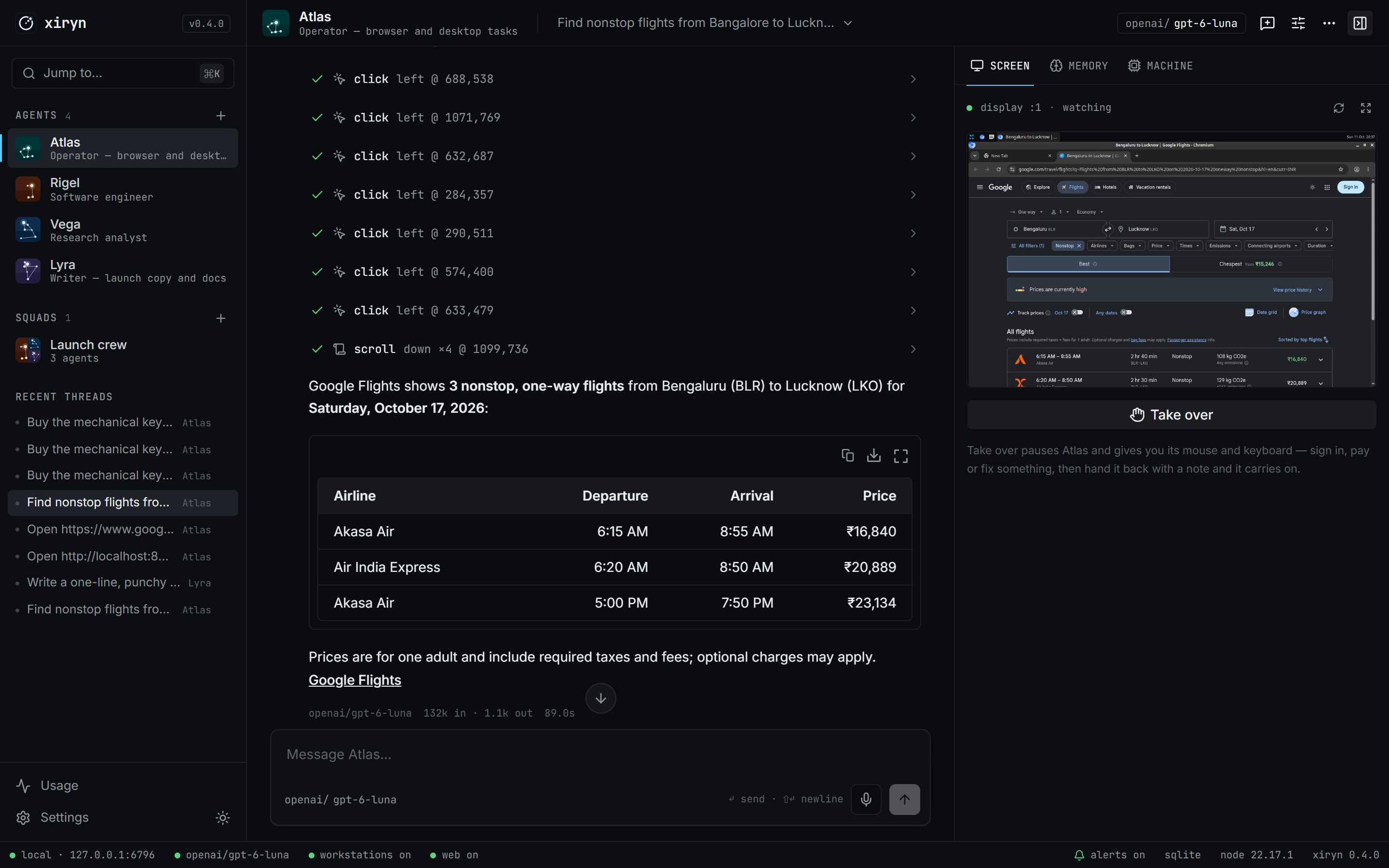
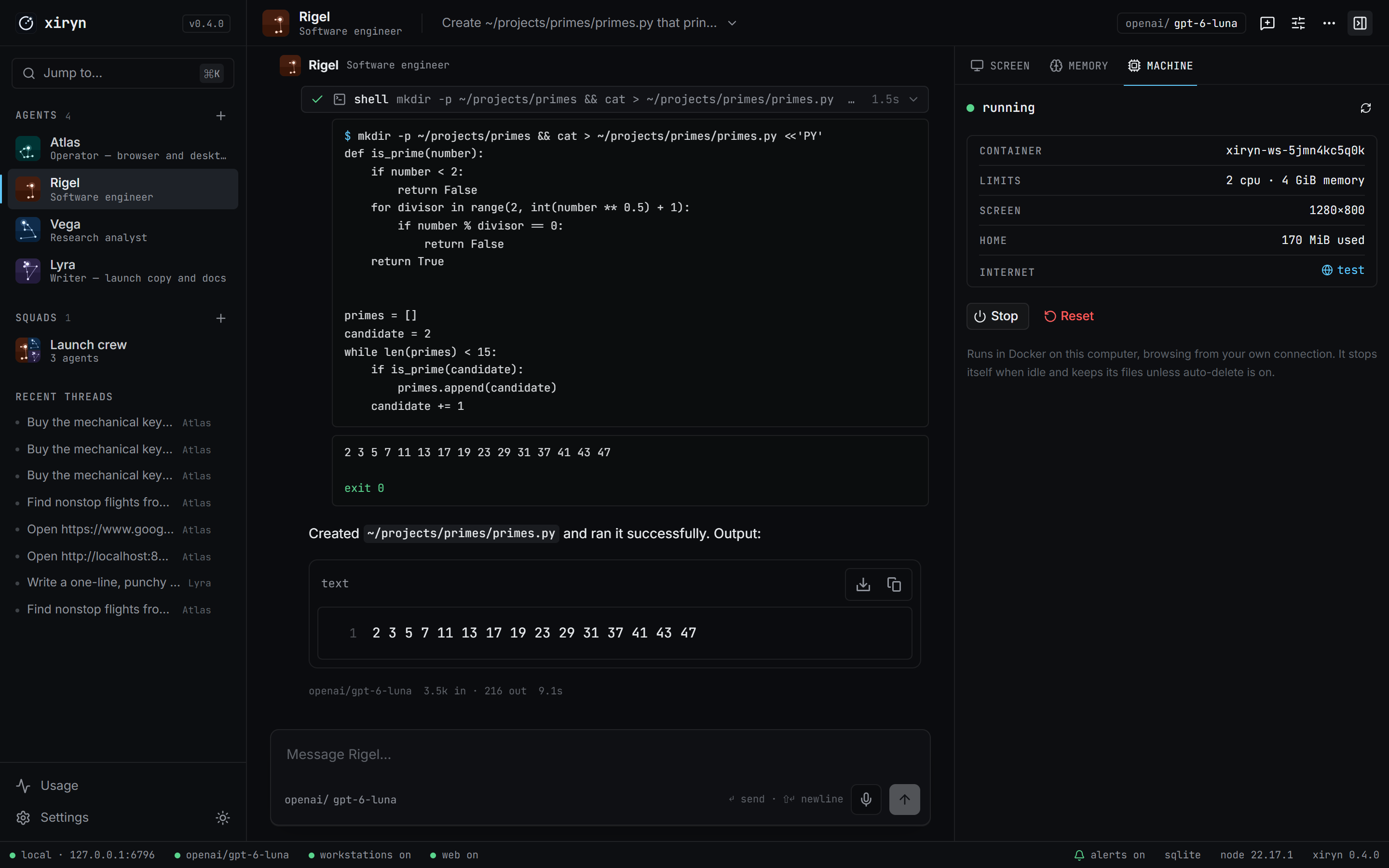
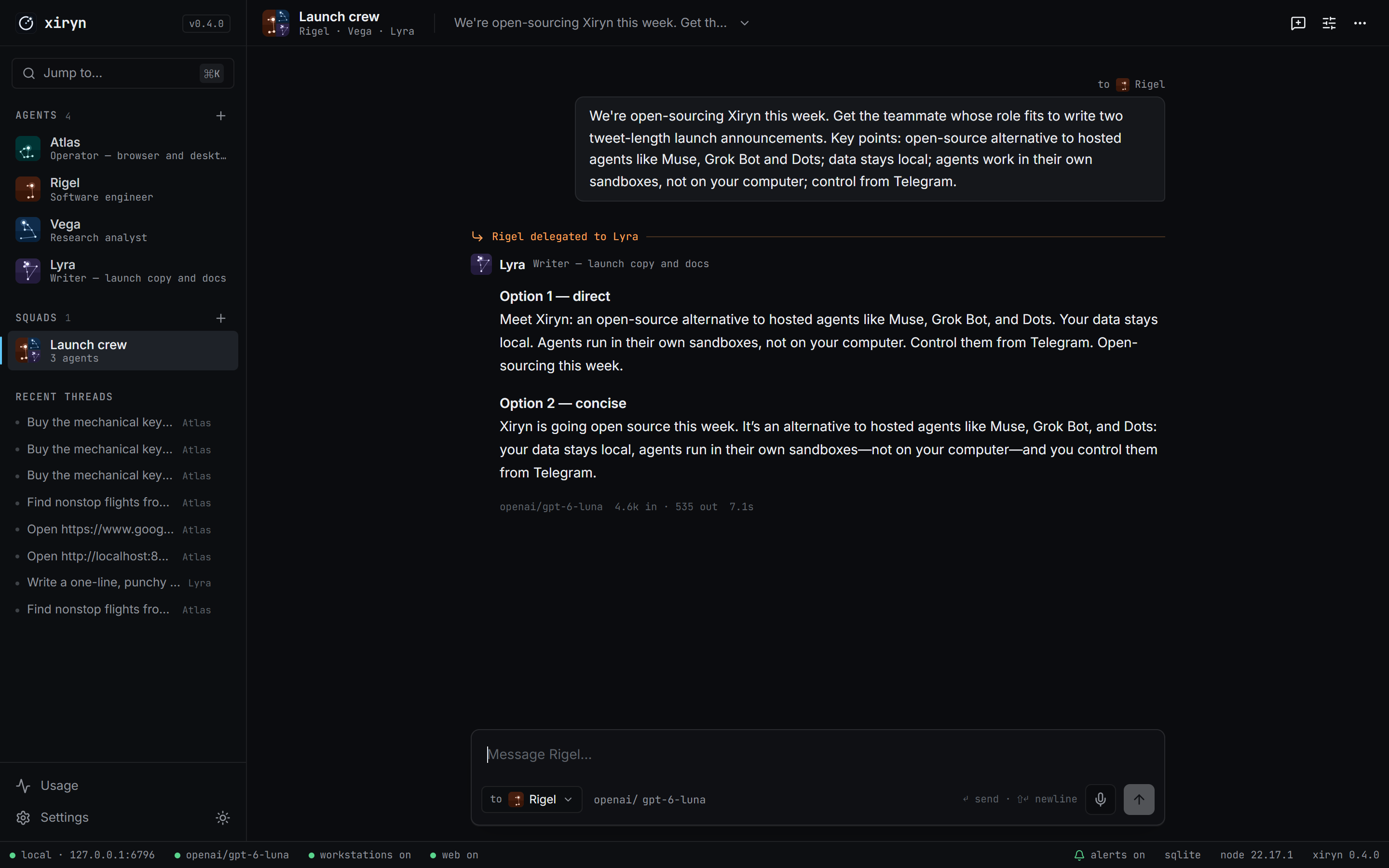
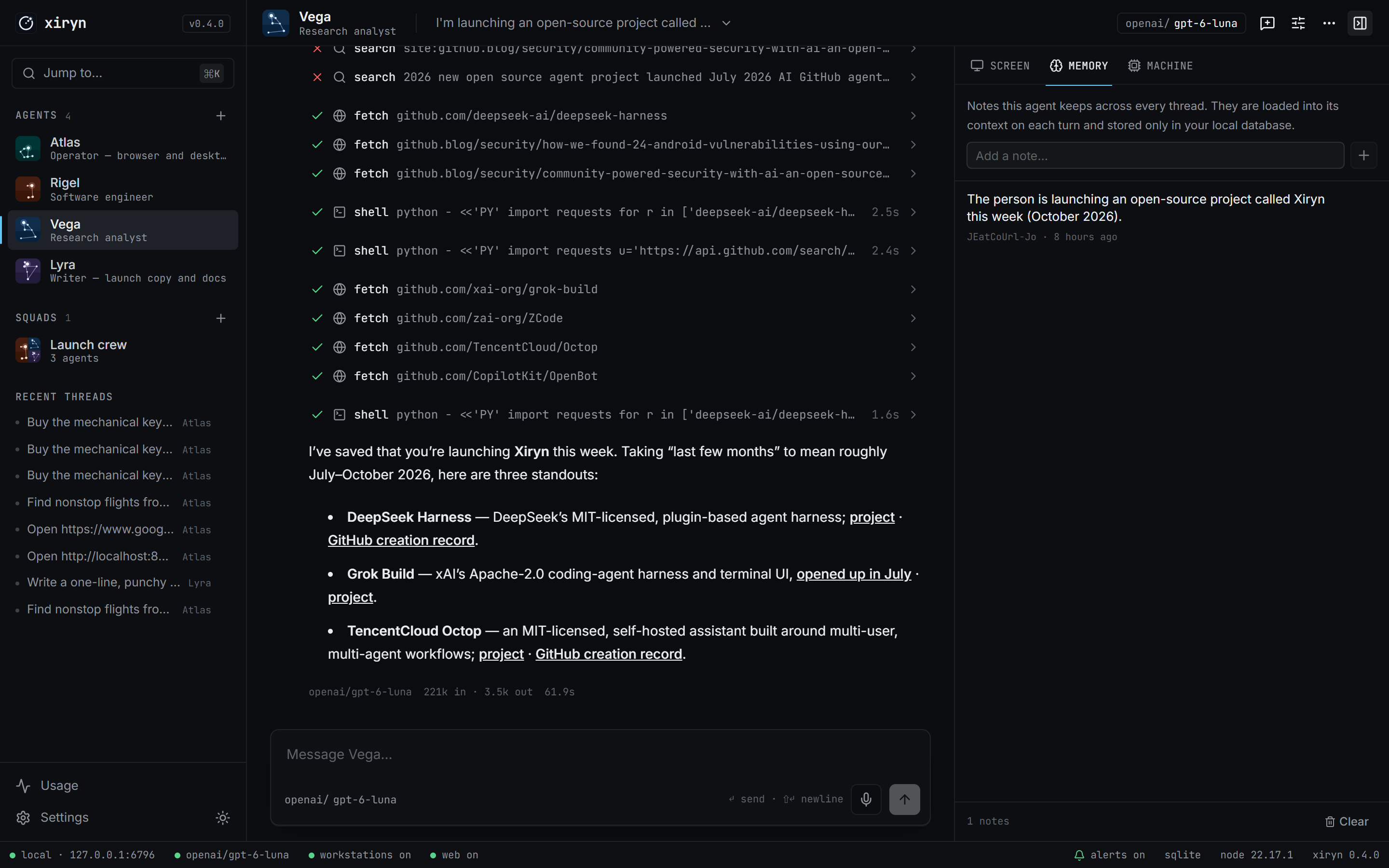
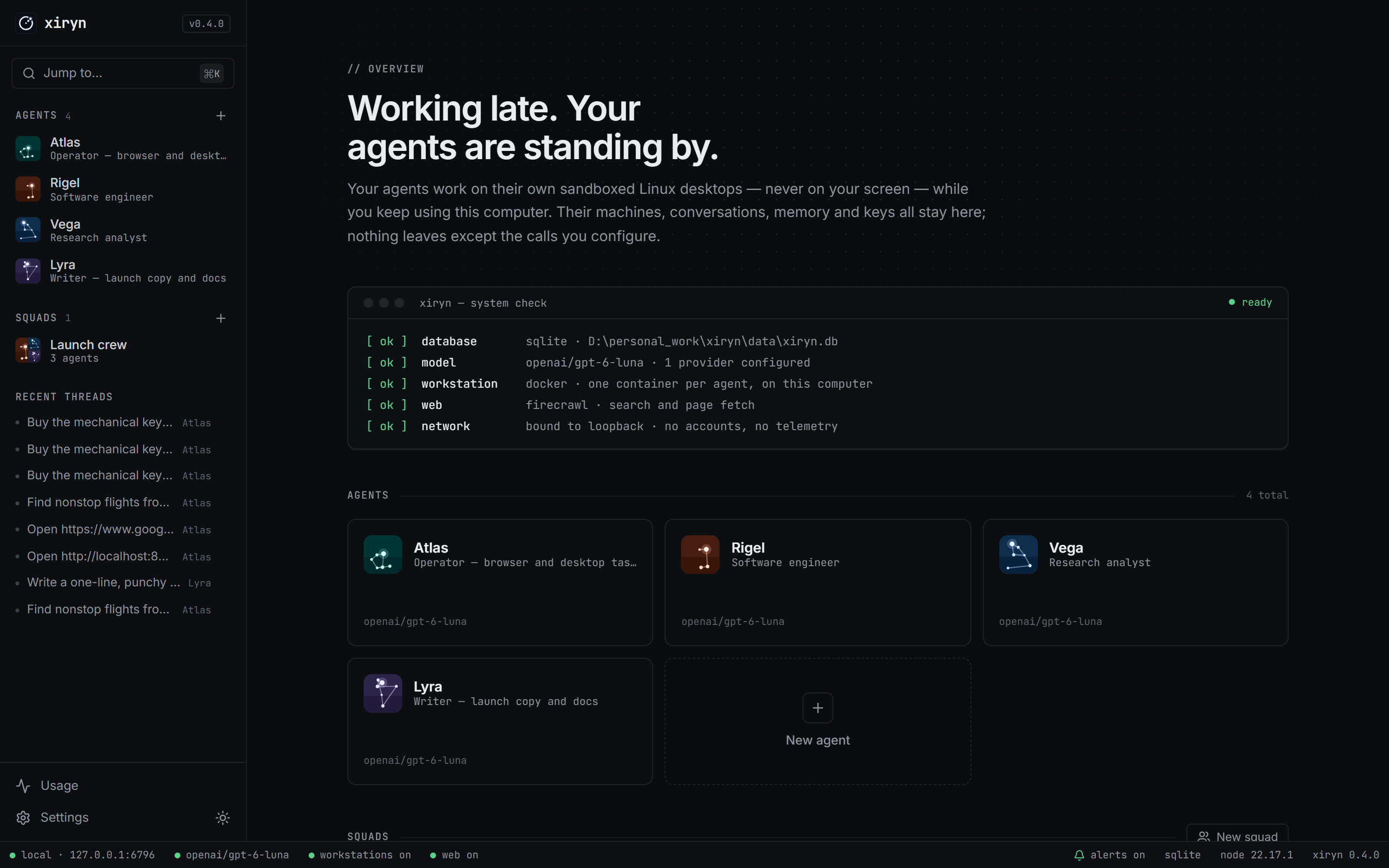
Anything that can be done with a terminal, a browser and a desktop — while you get on with your day:
Real browsing, from your own connection. Agents' machines run on your computer, so sites see an ordinary home connection rather than a data center — no blocked sites, far fewer CAPTCHAs.
You need: a computer with about 4 GB of free disk, and an API key for at least one model provider. The setup installs everything else. Firecrawl (fast web search) is optional.
| Your system | Run this in a terminal |
| --- | --- |
| macOS / Linux | curl -fsSL https://raw.githubusercontent.com/SouravBeraAkaSpeed/xiryn/main/setup.sh \| bash |
| Windows (PowerShell) | irm https://raw.githubusercontent.com/SouravBeraAkaSpeed/xiryn/main/setup.ps1 \| iex |
Already cloned the repo? Run ./setup.sh on macOS/Linux, or double-click setup.cmd on Windows.
The setup asks once, then does the rest:
1. Installs what's missing — Git, Node.js, and Docker (Docker Desktop through winget on Windows or Homebrew on macOS; Docker Engine through get.docker.com on Linux).
2. Clones Xiryn into ./xiryn and installs its packages.
3. Starts Docker and builds the agents' desktop image — a few minutes, once.
4. Creates .env and starts Xiryn at **.
The first time, Docker Desktop may ask you to accept its terms, and on Windows it can ask for a restart to turn on WSL 2. Afterwards run the setup again; it skips everything that's already done.
Using Claude Code, Codex, Cursor or another coding agent? Paste this prompt into it. It installs everything, asks you for your keys and starts Xiryn:
Install and start Xiryn for me — the open-source personal agent that runs on my own computer: https://github.com/SouravBeraAkaSpeed/xiryn
1. From my home folder, run Xiryn's setup without prompts. It clones Xiryn into ./xiryn (or reuses it), installs Git, Node.js and Docker if they're missing, installs the packages and builds the agents' desktop image, which takes several minutes the first time — let it finish:
- macOS / Linux: curl -fsSL https://raw.githubusercontent.com/SouravBeraAkaSpeed/xiryn/main/setup.sh | XIRYN_YES=1 XIRYN_NO_START=1 bash
- Windows (PowerShell): $env:XIRYN_YES="1"; $env:XIRYN_NO_START="1"; irm https://raw.githubusercontent.com/SouravBeraAkaSpeed/xiryn/main/setup.ps1 | iex
(If you'd rather not pipe a script, clone the repo and run ./setup.sh or .\setup.ps1 inside it with the same two variables.)
- If it stops and shows a command that needs my password, show me that command, wait for me to run it in my own terminal, then run the setup again.
- If Docker Desktop was just installed or isn't running, ask me to open it and accept its terms (Windows may also ask for a restart). Wait until
docker info works, then run the setup again.
- Node.js may have been installed into ~/.xiryn/node/bin; add that to PATH in your shell if
node isn't found.
2. Ask me for my keys. Explain each in one sentence with where to get it, and let me skip the optional ones:
- Required, at least one model provider: OpenAI (OPENAI_API_KEY, platform.openai.com/api-keys), Anthropic (ANTHROPIC_API_KEY, console.anthropic.com), Google Gemini (GOOGLE_GENERATIVE_AI_API_KEY, aistudio.google.com/apikey) — or any other provider listed in .env.example, including a local Ollama or LM Studio.
- Optional: FIRECRAWL_API_KEY (firecrawl.dev) for fast web search.
- Optional: TELEGRAM_BOT_TOKEN to talk to my agents from my phone. Tell me how to get it: in Telegram, message @BotFather, send /newbot, choose a name and a username ending in "bot", and copy the token it replies with.
Put what I give you into the matching lines of xiryn/.env. Never repeat the keys back to me, log them or commit .env.
3. Start Xiryn with npm run dev inside the xiryn folder, in the background. Wait until http://127.0.0.1:6796 responds, then open it in my browser.
4. Finish with a short summary: what got installed, which keys are set, how to start Xiryn next time (cd xiryn && npm run dev), and — if I added a Telegram token — that I should open Settings → Remote access in Xiryn and scan the QR code with my phone to pair it.
Install Node.js 20.9+ and Docker, then:
git clone https://github.com/SouravBeraAkaSpeed/xiryn.git
cd xiryn
npm install
npm run setup     # checks Docker, builds the agents' desktop image, creates .env
npm run dev
Paste a model provider key into Settings in the app — or put it in .env:
OPENAI_API_KEY=sk-...          # or any other provider
FIRECRAWL_API_KEY=fc-...       # optional: web search & reading
cd xiryn
npm run dev                    # or: npm run build && npm start
Open and deploy your first agent. Prefer containers all the way down? docker compose up -d runs Xiryn itself in Docker too.
Click alerts in the status bar once to allow desktop notifications: you'll hear a chime and get a notification whenever an agent finishes, fails or needs you — even with Xiryn in the background.
When something new is pushed, an update button appears next to the Xiryn logo; it brings you here.
cd xiryn
git pull
./setup.sh        # Windows: setup.cmd
setup installs any new packages and rebuilds the agents' desktop image if it changed (each agent's machine moves to it the next time it starts, keeping its files). Then start Xiryn as usual with npm run dev.
cd xiryn
git pull
docker compose up -d --build
Your data — data/xiryn.db, the vault and the agents' home folders — is untouched by updates.
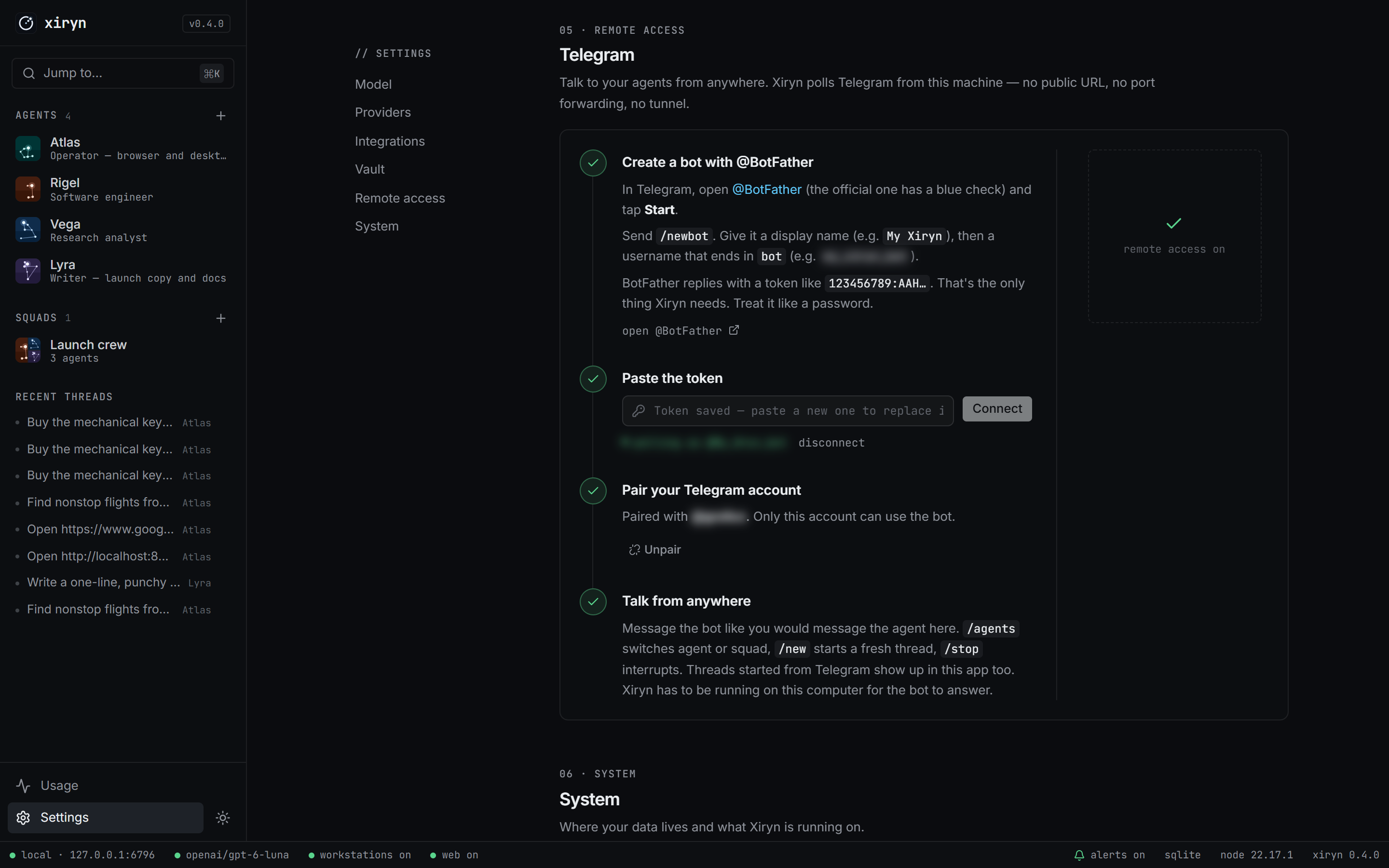
1. In Telegram, message @BotFather → /newbot → copy the token.
2. Paste it in Settings → Remote access.
3. Scan the QR code with your phone and tap Start.
Done — only your account can use the bot.
/agents   pick an agent or squad      /new     start a fresh thread
/stop     interrupt the agent         /status  what's running
When an agent needs you — a payment, a login, a code — the bot pings you with a live link to the agent's desktop. Finish the step from your phone, reply "done", and the agent carries on. Longer tasks you started at your computer report back here too when they finish, so you can walk away.
Full walkthrough: docs/telegram.md.
graph LR
    you([You · browser]) -->|localhost| app
    phone([You · Telegram]) -.->|Bot API| tg[Telegram]
    tg -.->|long-poll from your machine| app
subgraph machine [Your computer]
        app[Xiryn · Next.js server]
        app --> runtime[Agent runtime]
        app --> db[(SQLite · data/xiryn.db)]
        runtime --> db
        runtime -->|docker| ws[Workstations · one container per agent]
    end
runtime -->|your key| llm[Model provider]
    runtime -.->|your key, optional| firecrawl[Firecrawl]
    you -->|live desktop · noVNC on 127.0.0.1| ws
One process, one file. The Next.js server serves the UI, runs agent turns in-process through the AI SDK, and owns the SQLite database — no queue, no worker, no backend of ours. Details in docs/architecture.md.
| Path | What lives there |
| --- | --- |
| lib/agent/ | Runtime, tool belt, instruction builder |
| lib/providers/ | Provider catalog, model factory, live model discovery |
| lib/telegram/ | Bot API client, formatter and the bridge |
| lib/workstation.ts, lib/docker.ts, workstation/ | Agents' machines: containers, desktop control and the image they run |
| lib/web.ts | Firecrawl |
| db/ | Drizzle schema and migrations |
| app/, components/ | The interface |
Every setting can come from .env or from Settings in the app. Values saved in the app win, are stored only in data/xiryn.db, and are shown back to the browser masked. The annotated list is in .env.example; providers are covered in docs/providers.md.
| Variable | Purpose |
| --- | --- |
| OPENAI_API_KEY, ANTHROPIC_API_KEY, GOOGLE_GENERATIVE_AI_API_KEY, XAI_API_KEY, GROQ_API_KEY, MISTRAL_API_KEY, DEEPSEEK_API_KEY, OPENROUTER_API_KEY | Hosted model providers |
| OLLAMA_BASE_URL, LMSTUDIO_BASE_URL, CUSTOM_BASE_URL | Local runtimes and any OpenAI-compatible API |
| XIRYN_DEFAULT_MODEL, XIRYN_MAX_STEPS | Default provider/model, max tool calls per turn |
| XIRYN_WORKSTATION_CPUS, XIRYN_WORKSTATION_MEMORY_GB | Limits for each agent's machine (default 2 CPUs, 4 GB) |
| XIRYN_WORKSTATION_AUTO_STOP_MINUTES, XIRYN_WORKSTATION_AUTO_DELETE_MINUTES | Idle stop; disposable machines |
| XIRYN_PHONE_TAKEOVER | off leaves the phone link out of Telegram hand-offs |
| FIRECRAWL_API_KEY | Web search and reading |
| TELEGRAM_BOT_TOKEN, TELEGRAM_OWNER_ID | Remote access |
| XIRYN_TELEGRAM_NOTIFY | Telegram notice when a task finishes: long (a minute or more, default), all or off |
| XIRYN_DATA_DIR, XIRYN_ALLOWED_HOSTS | Data location; extra hostnames behind your own proxy |
| XIRYN_URL | Where you open Xiryn, for links in Telegram hand-offs |
| XIRYN_UPDATE_CHECK | off stops the update check and star count |
Xiryn has no user accounts, so it's built never to be reachable by anyone but you:
Host or Origin isn't loopback — which also blocks DNS-rebinding attacks from web pages you visit.XIRYN_UPDATE_CHECK=off.Does an agent control my computer? No. Everything an agent does — commands, files, mouse, keyboard, browser — happens inside its own Docker container: a separate Linux system with its own desktop and files. It can't see your screen, files or apps, so you keep using your computer normally. It does share your CPU and memory while it works; the limits are in Settings.
Can it book a flight or order something? It can do the legwork on real websites — search, compare, fill in the details — and it will ask before anything irreversible. Payments always need your approval: the agent shows you the merchant, the amount and the site, and you either let it pay with a card or UPI ID from your vault, or take over its screen and pay yourself — in the app or from your phone through Telegram. Logins work the same way: a saved login is filled for it, or you sign in on its screen once and the session stays.
How do I delete a thread? Hover it under Recent threads in the sidebar and click the trash icon, or open the thread menu (⋯) in its header → Delete thread. The agent, its memory and its workstation stay.
Where is my data?
In data/xiryn.db on your disk. Back it up by copying the file; erase everything by deleting it.
Does it work without Docker or Firecrawl? Without Docker, agents chat, remember and (with Firecrawl) research, but can't run code or use a desktop. Without Firecrawl, they search and read the web with their own browser. The app tells you what's missing.
Can I use only local models?
Yes — point OLLAMA_BASE_URL or LMSTUDIO_BASE_URL at your runtime and pick a model with tool calling.
What doe
→ →
→ →
→ →
→ →
→ →
→ →
→ →
→