
1
 →
opencode-ai/opencode is an open-source project on GitHub, mainly written in Go. A powerful AI coding agent. Built for the terminal. It currently holds 13,880 stars and 2,471 forks with 157 open issues, and was last pushed on 2025-09-18 (repository created 2025-03-16).
AI Homed tracks it on the Today's Trending board, currently at rank #70 with 3 new stars today.
This repository is no longer maintained and has been archived for provenance.
The project has continued under the name [Crush][crush], developed by the original author and the Charm team.
Please follow [Crush][crush] for ongoing development.
[crush]: https://github.com/charmbracelet/crush
⚠️ Early Development Notice: This project is in early development and is not yet ready for production use. Features may change, break, or be incomplete. Use at your own risk.
A powerful terminal-based AI assistant for developers, providing intelligent coding assistance directly in your terminal.
OpenCode is a Go-based CLI application that brings AI assistance to your terminal. It provides a TUI (Terminal User Interface) for interacting with various AI models to help with coding tasks, debugging, and more.
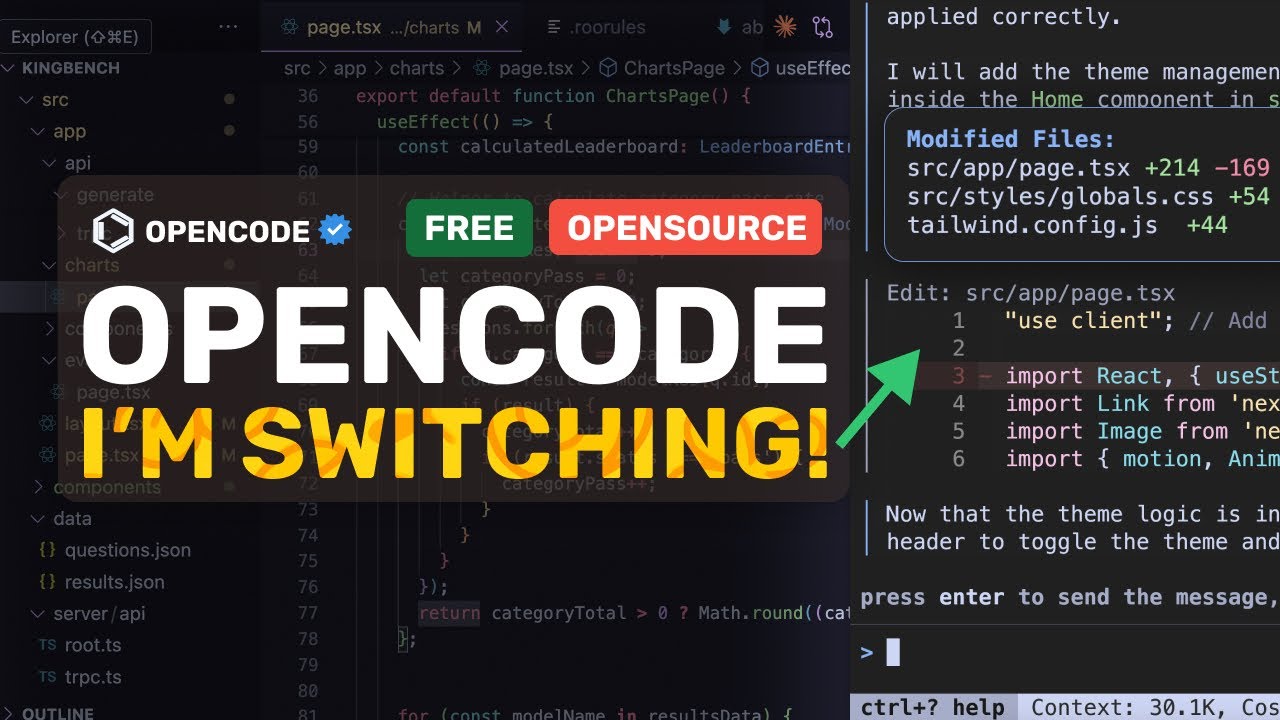
For a quick video overview, check out
 OpenCode + Gemini 2.5 Pro: BYE Claude Code! I'm SWITCHING To the FASTEST AI Coder!
# Install the latest version
curl -fsSL https://raw.githubusercontent.com/opencode-ai/opencode/refs/heads/main/install | bash
Install a specific version
curl -fsSL https://raw.githubusercontent.com/opencode-ai/opencode/refs/heads/main/install | VERSION=0.1.0 bash
brew install opencode-ai/tap/opencode
# Using yay
yay -S opencode-ai-bin
Using paru
paru -S opencode-ai-bin
go install github.com/opencode-ai/opencode@latest
OpenCode looks for configuration in the following locations:
$HOME/.opencode.json$XDG_CONFIG_HOME/opencode/.opencode.json./.opencode.json (local directory)OpenCode includes an auto compact feature that automatically summarizes your conversation when it approaches the model's context window limit. When enabled (default setting), this feature:
{
  "autoCompact": true // default is true
}
You can configure OpenCode using environment variables:
| Environment Variable | Purpose |
| -------------------------- | -------------------------------------------------------------------------------- |
| ANTHROPIC_API_KEY | For Claude models |
| OPENAI_API_KEY | For OpenAI models |
| GEMINI_API_KEY | For Google Gemini models |
| GITHUB_TOKEN | For Github Copilot models (see Using Github Copilot) |
| VERTEXAI_PROJECT | For Google Cloud VertexAI (Gemini) |
| VERTEXAI_LOCATION | For Google Cloud VertexAI (Gemini) |
| GROQ_API_KEY | For Groq models |
| AWS_ACCESS_KEY_ID | For AWS Bedrock (Claude) |
| AWS_SECRET_ACCESS_KEY | For AWS Bedrock (Claude) |
| AWS_REGION | For AWS Bedrock (Claude) |
| AZURE_OPENAI_ENDPOINT | For Azure OpenAI models |
| AZURE_OPENAI_API_KEY | For Azure OpenAI models (optional when using Entra ID) |
| AZURE_OPENAI_API_VERSION | For Azure OpenAI models |
| LOCAL_ENDPOINT | For self-hosted models |
| SHELL | Default shell to use (if not specified in config) |
OpenCode allows you to configure the shell used by the bash tool. By default, it uses the shell specified in the SHELL environment variable, or falls back to /bin/bash if not set.
You can override this in your configuration file:
{
  "shell": {
    "path": "/bin/zsh",
    "args": ["-l"]
  }
}
This is useful if you want to use a different shell than your default system shell, or if you need to pass specific arguments to the shell.
{
  "data": {
    "directory": ".opencode"
  },
  "providers": {
    "openai": {
      "apiKey": "your-api-key",
      "disabled": false
    },
    "anthropic": {
      "apiKey": "your-api-key",
      "disabled": false
    },
    "copilot": {
      "disabled": false
    },
    "groq": {
      "apiKey": "your-api-key",
      "disabled": false
    },
    "openrouter": {
      "apiKey": "your-api-key",
      "disabled": false
    }
  },
  "agents": {
    "coder": {
      "model": "claude-3.7-sonnet",
      "maxTokens": 5000
    },
    "task": {
      "model": "claude-3.7-sonnet",
      "maxTokens": 5000
    },
    "title": {
      "model": "claude-3.7-sonnet",
      "maxTokens": 80
    }
  },
  "shell": {
    "path": "/bin/bash",
    "args": ["-l"]
  },
  "mcpServers": {
    "example": {
      "type": "stdio",
      "command": "path/to/mcp-server",
      "env": [],
      "args": []
    }
  },
  "lsp": {
    "go": {
      "disabled": false,
      "command": "gopls"
    }
  },
  "debug": false,
  "debugLSP": false,
  "autoCompact": true
}
OpenCode supports a variety of AI models from different providers:
# Start OpenCode
opencode
Start with debug logging
opencode -d
Start with a specific working directory
opencode -c /path/to/project
You can run OpenCode in non-interactive mode by passing a prompt directly as a command-line argument. This is useful for scripting, automation, or when you want a quick answer without launching the full TUI.
# Run a single prompt and print the AI's response to the terminal
opencode -p "Explain the use of context in Go"
Get response in JSON format
opencode -p "Explain the use of context in Go" -f json
Run without showing the spinner (useful for scripts)
opencode -p "Explain the use of context in Go" -q
In this mode, OpenCode will process your prompt, print the result to standard output, and then exit. All permissions are auto-approved for the session.
By default, a spinner animation is displayed while the model is processing your query. You can disable this spinner with the -q or --quiet flag, which is particularly useful when running OpenCode from scripts or automated workflows.
OpenCode supports the following output formats in non-interactive mode:
| Format | Description |
| ------ | ------------------------------- |
| text | Plain text output (default) |
| json | Output wrapped in a JSON object |
The output format is implemented as a strongly-typed OutputFormat in the codebase, ensuring type safety and validation when processing outputs.
| Flag | Short | Description |
| ----------------- | ----- | --------------------------------------------------- |
| --help | -h | Display help information |
| --debug | -d | Enable debug mode |
| --cwd | -c | Set current working directory |
| --prompt | -p | Run a single prompt in non-interactive mode |
| --output-format | -f | Output format for non-interactive mode (text, json) |
| --quiet | -q | Hide spinner in non-interactive mode |
| Shortcut | Action |
| -------- | ------------------------------------------------------- |
| Ctrl+C | Quit application |
| Ctrl+? | Toggle help dialog |
| ? | Toggle help dialog (when not in editing mode) |
| Ctrl+L | View logs |
| Ctrl+A | Switch session |
| Ctrl+K | Command dialog |
| Ctrl+O | Toggle model selection dialog |
| Esc | Close current overlay/dialog or return to previous mode |
| Shortcut | Action |
| -------- | --------------------------------------- |
| Ctrl+N | Create new session |
| Ctrl+X | Cancel current operation/generation |
| i | Focus editor (when not in writing mode) |
| Esc | Exit writing mode and focus messages |
| Shortcut | Action |
| ------------------- | ----------------------------------------- |
| Ctrl+S | Send message (when editor is focused) |
| Enter or Ctrl+S | Send message (when editor is not focused) |
| Ctrl+E | Open external editor |
| Esc | Blur editor and focus messages |
| Shortcut | Action |
| ---------- | ---------------- |
| ↑ or k | Previous session |
| ↓ or j | Next session |
| Enter | Select session |
| Esc | Close dialog |
| Shortcut | Action |
| ---------- | ----------------- |
| ↑ or k | Move up |
| ↓ or j | Move down |
| ← or h | Previous provider |
| → or l | Next provider |
| Esc | Close dialog |
| Shortcut | Action |
| ----------------------- | ---------------------------- |
| ← or left | Switch options left |
| → or right or tab | Switch options right |
| Enter or space | Confirm selection |
| a | Allow permission |
| A | Allow permission for session |
| d | Deny permission |
| Shortcut | Action |
| ------------------ | ------------------- |
| Backspace or q | Return to chat page |
OpenCode's AI assistant has access to various tools to help with coding tasks:
| Tool | Description | Parameters |
| ------------- | --------------------------- | ---------------------------------------------------------------------------------------- |
| glob | Find files by pattern | pattern (required), path (optional) |
| grep | Search file contents | pattern (required), path (optional), include (optional), literal_text (optional) |
| ls | List directory contents | path (optional), ignore (optional array of patterns) |
| view | View file contents | file_path (required), offset (optional), limit (optional) |
| write | Write to files | file_path (required), content (required) |
| edit | Edit files | Various parameters for file editing |
| patch | Apply patches to files | file_path (required), diff (required) |
| diagnostics | Get diagnostics information | file_path (optional) |
| Tool | Description | Parameters |
| ------------- | -------------------------------------- | ----------------------------------------------------------------------------------------- |
| bash | Execute shell commands | command (required), timeout (optional) |
| fetch | Fetch data from URLs | url (required), format (required), timeout (optional) |
| sourcegraph | Search code across public repositories | query (required), count (optional), context_window (optional), timeout (optional) |
| agent | Run sub-tasks with the AI agent | prompt (required) |
OpenCode is built with a modular architecture:
OpenCode supports custom commands that can be created by users to quickly send predefined prompts to the AI assistant.
Custom commands are predefined prompts stored as Markdown files in one of three locations:
1. User Commands (prefixed with user:):
$XDG_CONFIG_HOME/opencode/commands/
(typically ~/.config/opencode/commands/ on Linux/macOS)
or
$HOME/.opencode/commands/
2. Project Commands (prefixed with project:):
/.opencode/commands/
Each .md file in these directories becomes a custom command. The file name (without extension) becomes the command ID.
For example, creating a file at ~/.config/opencode/commands/prime-context.md with content:
RUN git ls-files
READ README.md
This creates a command called user:prime-context.
OpenCode supports named arguments in custom commands using placeholders in the format $NAME (where NAME consists of uppercase letters, numbers, and underscores, and must start with a letter).
For example:
# Fetch Context for Issue $ISSUE_NUMBER
RUN gh issue view $ISSUE_NUMBER --json title,body,comments
RUN git grep --author="$AUTHOR_NAME" -n .
RUN grep -R "$SEARCH_PATTERN" $DIRECTORY
When you run a command with arguments, OpenCode will prompt you to enter values for each unique placeholder. Named arguments provide several benefits:
You can organize commands in subdirectories:
~/.config/opencode/commands/git/commit.md
This creates a command with ID user:git:commit.
1. Press Ctrl+K to open the command dialog
2. Select your custom command (prefixed with either user: or project:)
3. Press Enter to execute the command
The content of the command file will be sent as a message to the AI assistant.
OpenCode includes several built-in commands:
| Command | Description | | ------------------ | --------------------------------------------------------------------------------------------------- | | Initialize Project | Creates or updates the OpenCode.md memory file with project-specific information | | Compact Session | Manually triggers the summarization of the current session, creating a new session with the summary |
OpenCode implements the Model Context Protocol (MCP) to extend its capabilities through external tools. MCP provides a standardized way for the AI assistant to interact with external services and tools.
MCP servers are defined in the configuration file under the mcpServers section:
{
  "mcpServers": {
    "example": {
      "type": "stdio",
      "command": "path/to/mcp-server",
      "env": [],
      "args": []
    },
    "web-example": {
      "type": "sse",
      "url": "https://example.com/mcp",
      "headers": {
        "Authorization": "Bearer token"
      }
    }
  }
}
Once configured, MCP tools are automatically available to the AI assistant alongside built-in tools. They follow the same permission model as other tools, requiring user approval before execution.
OpenCode integrates with Language Server Protocol to provide code intelligence features across multiple programming languages.
Language servers are configured in the configuration file under the lsp section:
{
  "lsp": {
    "go": {
      "disabled": false,
      "command": "gopls"
    },
    "typescript": {
      "disabled": false,
      "command": "typescript-language-server",
      "args": ["--stdio"]
    }
  }
}
The AI assistant can access LSP features through the diagnostics tool, allowing it to:
_Copilot support is currently experimental._
gh CLIcopilot.vim or copilot.lua)providers.copilot.apiKey.
OpenCode can also load and use models from a self-hosted (OpenAI-like) provider. This is useful for developers who want to experiment with custom models.
You can use a self-hosted model by setting the LOCAL_ENDPOINT environment variable.
This will cause OpenCode to load and use the models from the specified endpoint.
LOCAL_ENDPOINT=http://localhost:1235/v1
You can also configure a self-hosted model in the configuration file under the agents section:
{
  "agents": {
    "coder": {
      "model": "local.granite-3.3-2b-instruct@q8_0",
      "reasoningEffort": "high"
    }
  }
}
# Clone the repository
git clone https://github.com/opencode-ai/opencode.git
cd opencode
Build
go build -o opencode
Run
./opencode
OpenCode gratefully acknowledges the contributions and support from these key individuals:
OpenCode is licensed under the MIT License. See the [LICENSE](LICENS
→ →
 →
 →
 →
 →→
 →