microsoft/azure-skills is an open-source project on GitHub, mainly written in Shell. Official agent plugin providing skills and MCP server configurations for Azure scenarios. It currently holds 1,615 stars and 266 forks with 8 open issues, and was last pushed on 2026-11-03 (repository created 2026-02-26).
AI Homed tracks it on the Today's Trending board, currently at rank #69 with 3 new stars today.
Azure Skills Plugin
Azure work is not just a code problem. It is a decision problem: which service fits this app, what needs to be validated before deployment, which tools should run, and what guardrails matter. The Azure Skills Plugin packages Azure expertise and MCP-backed execution together so compatible coding agents can do real Azure work instead of giving generic cloud advice.
Explore the Azure Skills site
Landing page maintenance guide
Install the plugin
One install, three layers of capability
Azure skills: the brain
This plugin ships
curated Azure skills that teach an agent how Azure work gets done. They provide workflows, decision trees, and guardrails for scenarios such as:
- Build, deploy, and evolve with
azure-prepare, azure-validate, azure-deploy, azure-upgrade, azure-enterprise-infra-planner, azure-hosted-copilot-sdk, azure-kubernetes, and airunway-aks-setup
- Troubleshoot, monitor, and govern with
azure-diagnostics, appinsights-instrumentation, azure-compliance, azure-resource-lookup, and azure-quotas
- Optimize architecture and cost with
azure-cost, azure-compute, azure-resource-visualizer, and azure-cloud-migrate
- Work across data, AI, identity, and platform services with
azure-ai, azure-aigateway, azure-storage, azure-kusto, azure-messaging, azure-rbac, entra-app-registration, and microsoft-foundry
Azure MCP Server: the hands
The plugin wires in the
Azure MCP Server, which gives your agent
200+ structured tools across 40+ Azure services. That is the execution layer for listing resources, checking prices, querying logs, diagnosing issues, and driving real Azure workflows.
Foundry MCP: the AI specialist
The plugin also includes
Foundry MCP for Microsoft Foundry scenarios such as model discovery, model deployment, and agent workflows.
Why this plugin is different
This is not a prompt pack. It is a packaged Azure capability layer:
- Skills teach the agent when to use Azure workflows and what to avoid.
- MCP tools let the agent act on live Azure and Foundry resources.
- The plugin keeps the guidance layer and execution layer aligned in one install.
- Multi-host support lets you use the same Azure capability across environments such as GitHub Copilot in VS Code, Copilot CLI, Claude Code, and other compatible hosts.
What you get
| Component | What it adds | Examples |
| --- | --- | --- |
|
Azure skills | Azure expertise, workflows, and guardrails | Prepare, validate, deploy, diagnostics, cost, AI, RBAC |
|
Azure MCP Server | Live Azure tooling | Resource inventory, monitoring, pricing, storage, databases, messaging |
|
Foundry MCP | Microsoft Foundry workflows | Model catalog, deployments, agents, evaluations |
The plugin payload lives in
.github/plugins/azure-skills/, and the included MCP configuration shows how Azure and Foundry connectivity are wired for compatible hosts.
Install in 60 seconds
Prerequisites
Before you install, make sure you have:
- An Azure account or subscription
- Node.js 18+ available on your PATH (
npx is used to start the MCP servers)
- Azure CLI installed and authenticated with
az login
- Azure Developer CLI installed and authenticated with
azd auth login if you plan to use deployment workflows
APM (one install, multiple harnesses)
The Azure Skills Plugin is multi-harness. If you use
APM, one command installs it across GitHub Copilot, Claude Code, Cursor, OpenCode, Codex, and Gemini from a single
apm.yml:
```bash
apm install microsoft/azure-skills
```
GitHub Copilot CLI
Add the marketplace (first time only):
```
/plugin marketplace add microsoft/azure-skills
```
Install the plugin:
```
/plugin install azure@azure-skills
```
Update the plugin:
```
/plugin update azure@azure-skills
```
VS Code
Install the
Azure MCP extension from the Visual Studio Marketplace:
👉
Azure MCP Extension
The Azure MCP extension will also install a companion extension that brings the Azure skills into VS Code. Together they configure the Azure MCP Server, Foundry MCP, and the full skills layer automatically.
Note: The skills extension requires Git CLI to be installed on your machine. If you don't have it, ask Copilot to help you install Git for your OS.
Claude Code
Install the plugin — either run:
```bash
/plugin install azure@claude-plugins-official
```
Or run
/plugin and search for "azure" in the marketplace:
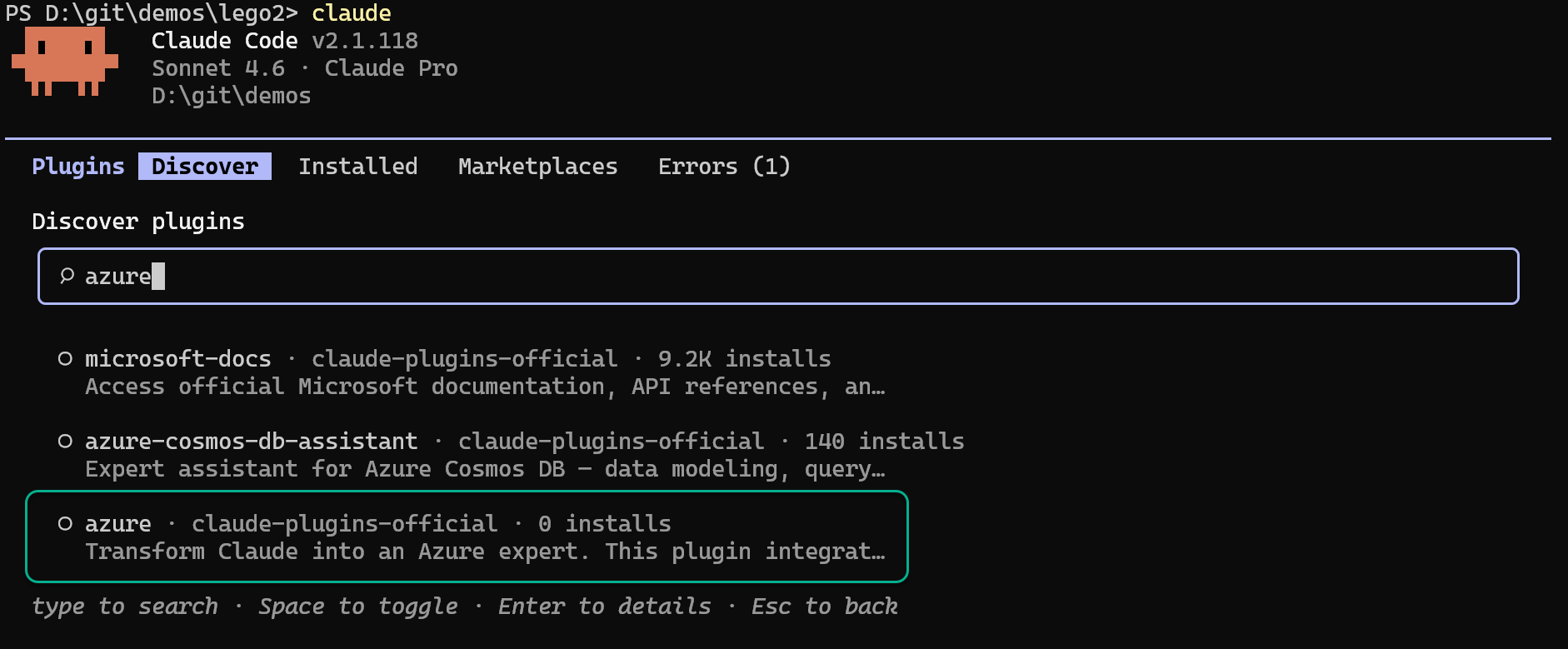 Update the plugin
:
```bash
/plugin update azure@claude-plugins-official
```
Gemini CLI
Install the extension:
```bash
gemini extensions install https://github.com/microsoft/azure-skills
```
Cursor
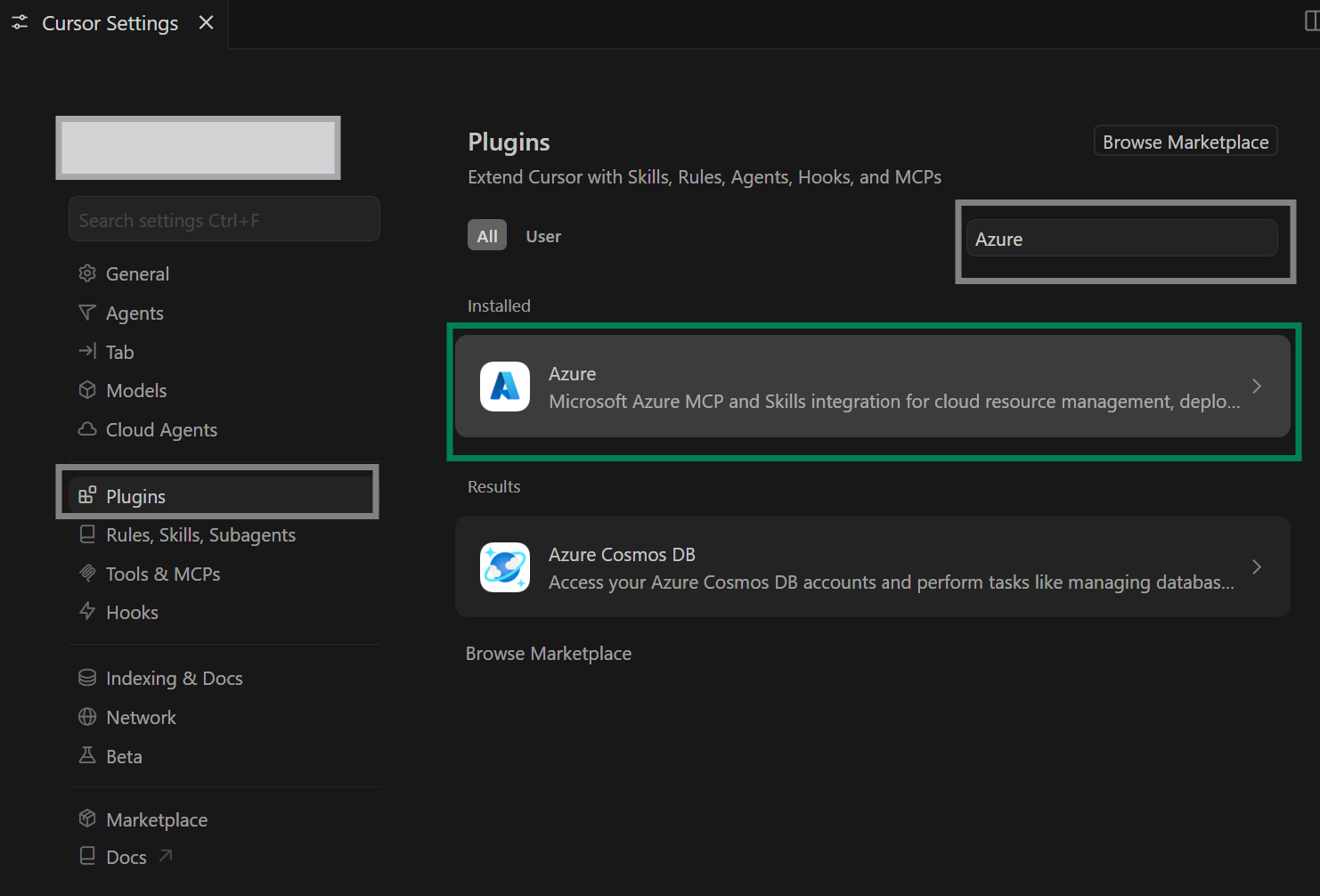
You can install the Azure plugin from the
Cursor Marketplace or directly from Cursor settings by navigating to
Settings >
Plugins and searching for "Azure":
Codex CLI
Add the marketplace (first time only):
```bash
codex plugin marketplace add microsoft/azure-skills
```
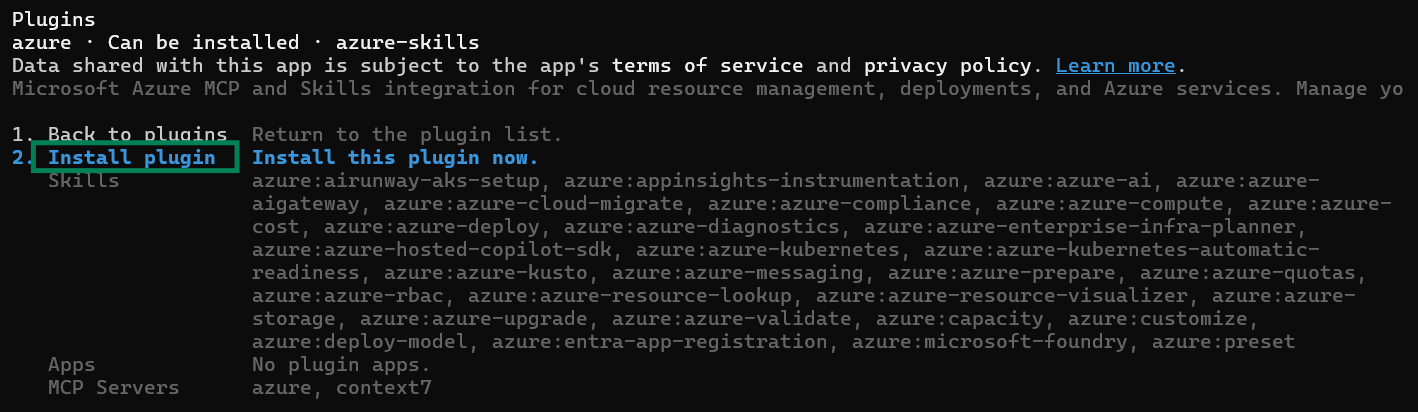
Install the plugin:
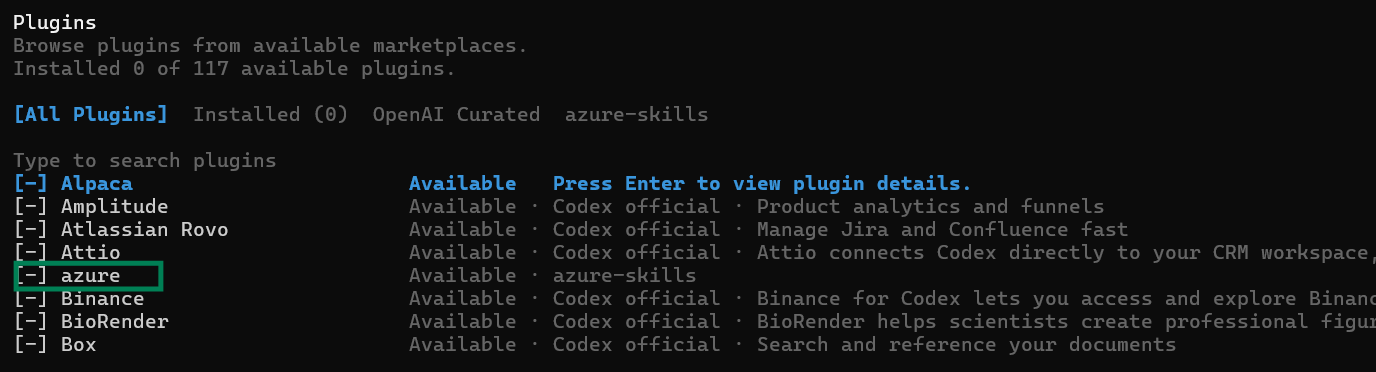
Browse plugins using
/plugins and install
azure:
 Enable or disable skills
:
You can choose to enable or disable specific skills by running
/skills in Codex and selecting the appropriate option:
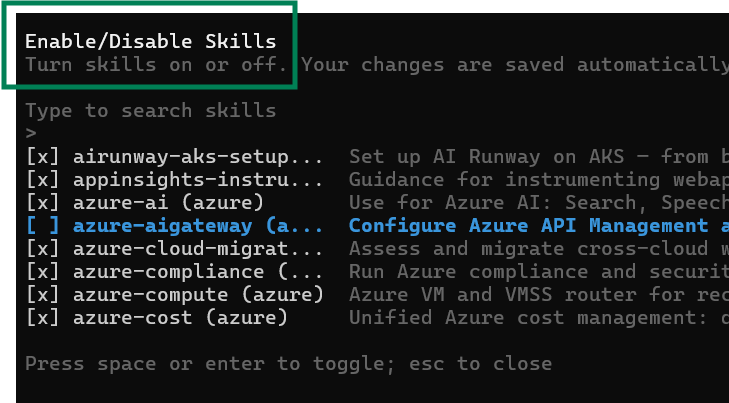
Note: A plugin installed from Codex CLI is also available in the Codex app.
IntelliJ IDEA
Prerequisites
Before installing Azure skills in IntelliJ IDEA, ensure you have:
- Node.js 18+ installed on your system with
npx available on your PATH
- Git installed and accessible from the command line
You can verify these prerequisites by running:
```bash
npx --version
git --version
```
Step 1: Install GitHub Copilot Plugin
1. Open IntelliJ IDEA
2. Go to
File >
Settings (on Windows/Linux) or
IntelliJ IDEA >
Preferences (on macOS)
3. Navigate to
Plugins in the left sidebar
4. Search for "GitHub Copilot" in the Marketplace tab
5. Install the
GitHub Copilot plugin (requires version 1.5.64-242 or higher)
6. Restart IntelliJ IDEA when prompted
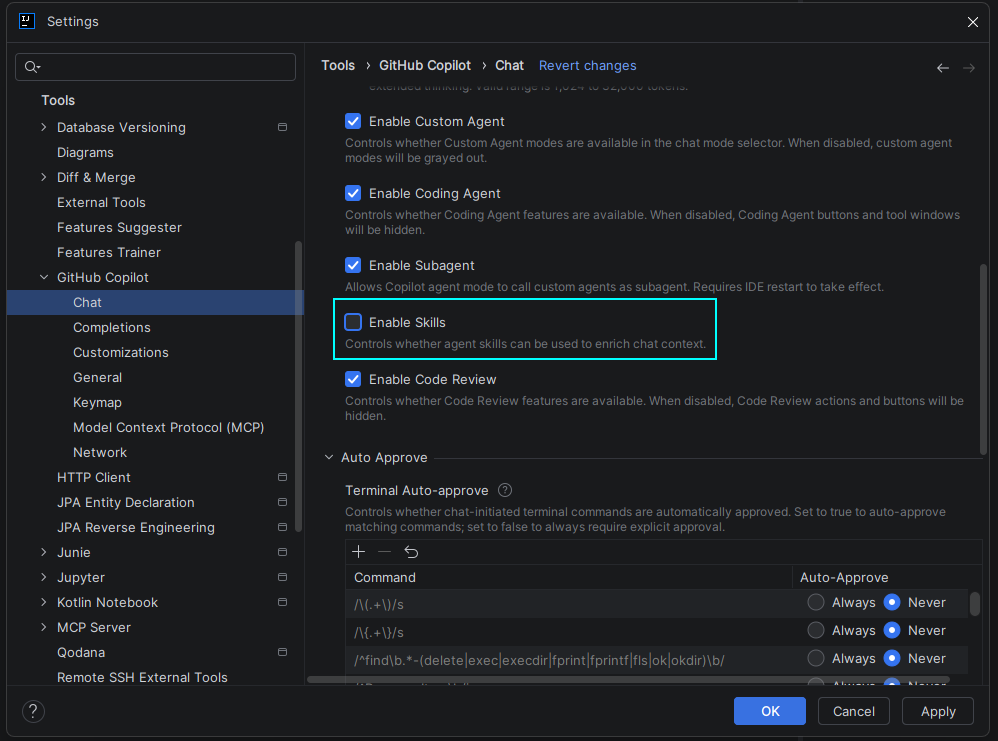
Step 2: Enable Skills for GitHub Copilot
1. Open IntelliJ IDEA settings/preferences again
2. Navigate to
Tools >
GitHub Copilot >
Chat
3. Check the
"Enable Skills" checkbox
4. Click
Apply and
OK
Step 3: Install Azure Skills
Option 1: Install Azure Toolkit For IntelliJ Plugin
1.
Install the Azure Toolkit plugin from the JetBrains Marketplace:
👉
Azure Toolkit for IntelliJ
2.
Restart IntelliJ IDEA to complete the plugin installation
3.
Install Azure Skills when prompted:
- After restarting, you'll see a notification offering to install Azure Skills
- Click Install to add the Azure skills to your environment
- See screenshot below for reference

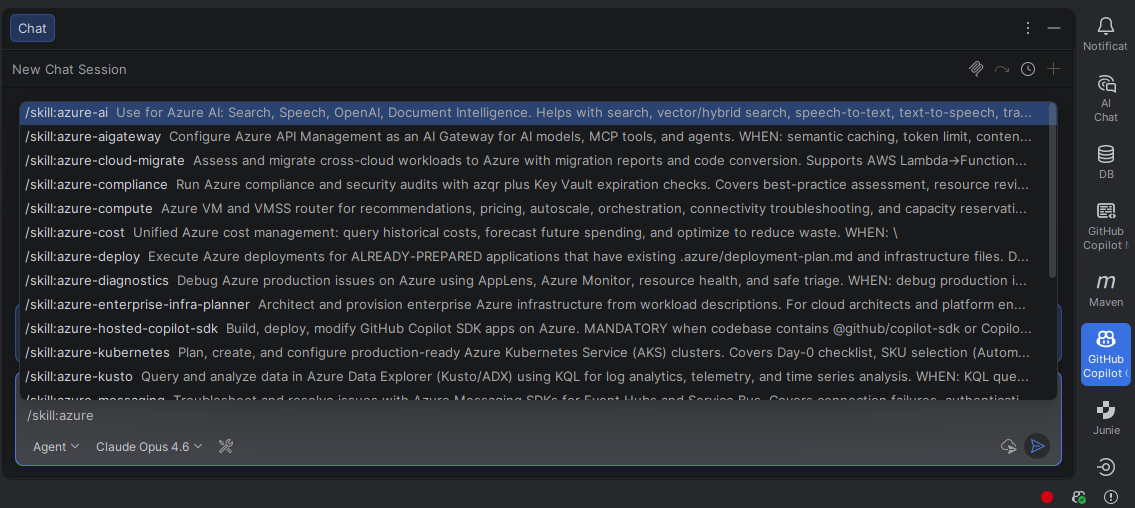
4.
Verify installation by opening the GitHub Copilot chat window and typing:
```
/skill:azure
```
This will display all available Azure skills you can now use in your projects.
 Option 2:
 Install Azure Skills manually
1. Open a terminal or command prompt
2. Run the following command to install Azure skills globally for GitHub Copilot:
```bash
npx skills add https://github.com/microsoft/azure-skills/tree/main/.github/plugins/azure-skills/skills -a github-copilot -g -y
```
Command explanation:
npx skills add - Uses the skills CLI to add a new skills package
- The GitHub URL points to the Azure skills directory in this repository
-a github-copilot - Specifies the skills are for GitHub Copilot
-g - Installs the skills globally (available across all projects)
-y - Automatically accepts prompts during installation
3. Wait for the installation to complete. You should see confirmation that the Azure skills have been successfully added.
Sovereign Cloud Configuration
By default, the Azure MCP server connects to the Azure Public Cloud. If you use a sovereign cloud (Azure China Cloud or Azure US Government), you need to configure the MCP server to use the appropriate cloud environment.
Copilot CLI
After installing the plugin, Azure MCP server should be configured for copilot as well. You can list the configured MCP servers by running
/mcp show
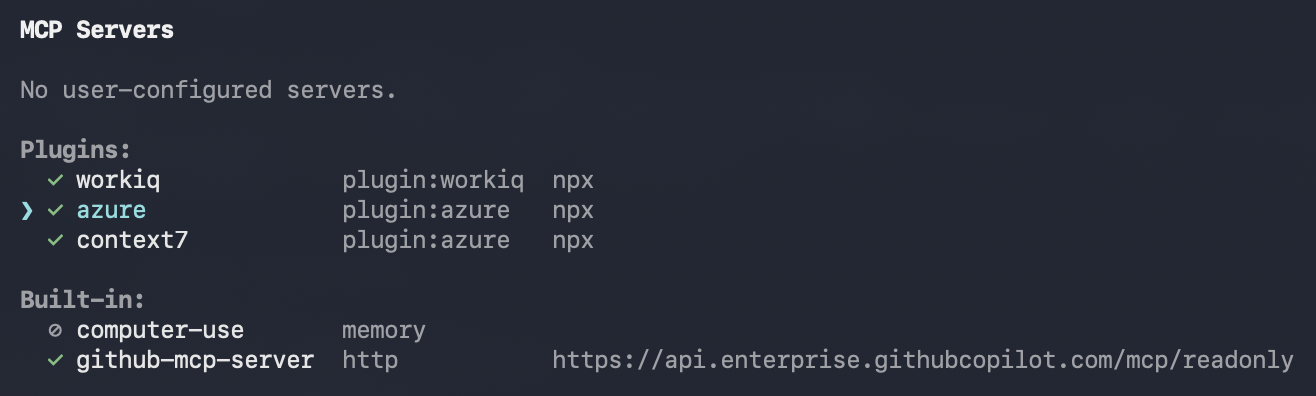
Edit the Azure MCP server named
azure from
plugin:azure to add the
--cloud argument. Execute
/mcp edit azure. Navigate to the
Command section to add the
--cloud argument, use
AzureChinaCloud to access Azure China Cloud, and use
AzureUSGovernment to access Azure US Government Cloud.
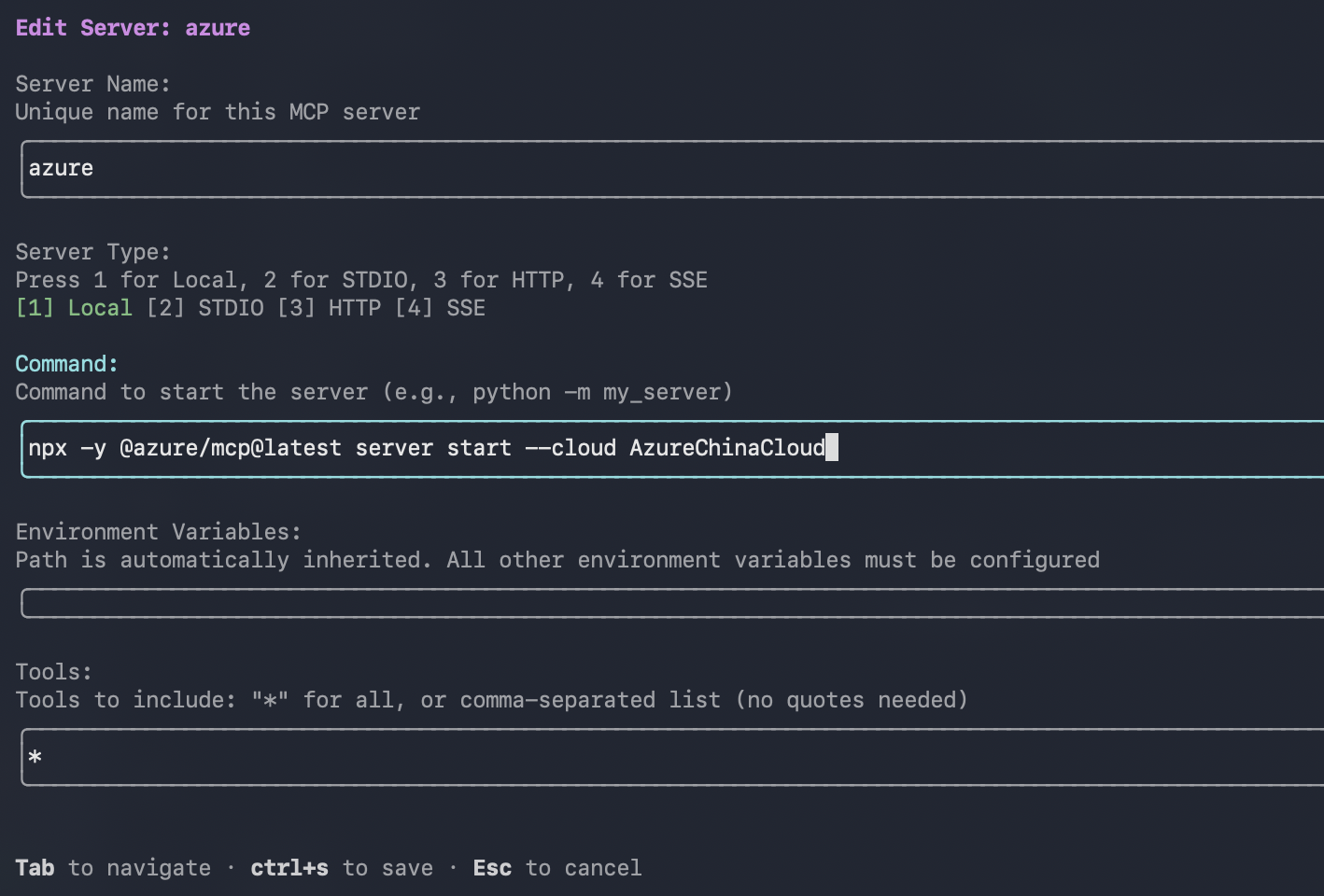
Before starting the MCP server, ensure your local CLI tools are authenticated against the correct cloud:
| Cloud | Azure CLI | Azure PowerShell | Azure Developer CLI |
|-------|-----------|-----------------|---------------------|
| China |
az cloud set --name AzureChinaCloud && az login |
Connect-AzAccount -Environment AzureChinaCloud |
azd config set cloud.name AzureChinaCloud && azd auth login |
| US Government |
az cloud set --name AzureUSGovernment && az login |
Connect-AzAccount -Environment AzureUSGovernment |
azd config set cloud.name AzureUSGovernment && azd auth login |
For more details, see
Connect to sovereign clouds in the Azure MCP Server documentation.
Verify the installation
After install, try three quick checks.
1. Verify the skills layer
Ask:
What Azure services would I need to deploy this project?
You should get structured Azure guidance, not just a generic cloud answer.
2. Verify Azure MCP
Ask:
List my Azure resource groups.
You should see a real tool-backed response from your Azure account.
3. Verify Foundry MCP
Ask:
What AI models are available in Microsoft Foundry?
You should get a Foundry-backed response rather than a generic summary.
Authentication
The recommended authentication path is Azure CLI:
```bash
az login
```
If you plan to deploy with
azd, also run:
```bash
azd auth login
```
You can also authenticate with service principal credentials:
Bash/Zsh
```bash
export AZURE_TENANT_ID="your-tenant-id"
export AZURE_CLIENT_ID="your-client-id"
export AZURE_CLIENT_SECRET="your-client-secret"
```
PowerShell
```powershell
$env:AZURE_TENANT_ID = "your-tenant-id"
$env:AZURE_CLIENT_ID = "your-client-id"
$env:AZURE_CLIENT_SECRET = "your-client-secret"
```
When the agent runs inside Azure, the Azure MCP Server can also use managed identity.
Prompts to try
Once the plugin is installed, try prompts like these:
Prepare this app for Azure.
Validate my Azure deployment files before I run azd up.
Deploy this project to Azure Container Apps.
List my Azure storage accounts.
Find cost savings across my Azure subscription.
Troubleshoot why my container app is failing health probes.
What role should I assign to let this managed identity read blobs?
What AI models are available in Microsoft Foundry?
Repository layout
If you are exploring or customizing the plugin source, the key pieces are:
.github/plugins/azure-skills/skills/ - the Azure skill definitions.github/plugins/azure-skills/.mcp.json - included MCP configuration for Azure and Foundrylanding-page/ - Astro GitHub Pages site source and maintenance guideREADME.md - high-level overview and install guide for the plugin
Troubleshooting
The agent is not using Azure skills
- Make sure the plugin installed successfully in your host
- Confirm the Azure skills directory is present
- Reload or restart your host so it re-indexes plugins and MCP configuration
MCP tools are not showing up
- Verify Node.js is installed and
npx works
- Check that the Azure and Foundry MCP entries were added for your host
- Restart MCP servers or reload the host after configuration changes
Azure commands fail with auth errors
- Re-run
az login
- Re-run
azd auth login for deployment scenarios
- Make sure the correct Azure subscription is selected
Learn more
Telemetry
To disable Azure MCP telemetry collection, set:
```bash
export AZURE_MCP_COLLECT_TELEMETRY=false
```
Contribution
This repository is automatically sync'ed from https://github.com/microsoft/GitHub-Copilot-for-Azure. If you would like to contribute to Azure skills, please open PR's there. Thank you!
 →
→
 →
→ →
→ →
→ →
→ →
→ →
→ →
→