1
 →
→
Private local AI assistant for your desktop. Voice and text chat, personal memory, dictation and MCP tools. Runs offline with Ollama or OpenAI-compatible servers on macOS, Windows and Linux.
isair/jarvis is an open-source project on GitHub, mainly written in Python. Private local AI assistant for your desktop. Voice and text chat, personal memory, dictation and MCP tools. It currently holds 2,062 stars and 406 forks with 0 open issues, and was last pushed on an unknown date (repository created unknown).
AI Homed tracks it on the Today's Trending board, currently at rank #64 with 27 new stars today.
A private, local-first AI assistant with voice and text chat.
Talk naturally, as if Jarvis were a third person in the room.
Voice-first · Local AI · Personal memory · No subscription
Download Jarvis → · Website · Get started · Explore the app · Support the project
---
Jarvis is built to be part of the conversation. Talk through an idea, discuss plans with a friend, then ask “Jarvis, what do you think?” While listening, it keeps a short, temporary rolling transcript of nearby speech so it can join an ongoing conversation using what was just discussed.
Address Jarvis by name anywhere in a sentence and follow up naturally. Speech recognition, language models and speech synthesis run on hardware you control.
Your diary and knowledge graph stay on your computer. Speech and chat models run locally when you use a local model server. Sensitive information is redacted before reaching model context or the saved diary. Web search, weather and connected tools use the network for those requests.

A voice, a face, and a place in the conversation.
1. Download the app. Choose your platform from GitHub Releases.
| Platform | Package | Open |
| :--- | :--- | :--- |
| macOS · Apple Silicon | Jarvis-macOS-arm64.zip | Extract, move to Applications, then right-click → Open |
| macOS · Intel | Jarvis-macOS-x64.zip | Extract, move to Applications, then right-click → Open |
| Windows · x64 | Jarvis-Windows-x64.zip | Extract, then run Jarvis.exe |
| Linux · x64 | Jarvis-Linux-x64.tar.gz | Extract, then run ./Jarvis/Jarvis |
2. Choose your local models. The setup wizard guides you through speech recognition and a model server. Use Ollama, or connect an OpenAI-compatible server you already run, such as LM Studio, oMLX or llama.cpp.
3. Make it yours. Allow microphone access and let the first model downloads finish. When Jarvis reports that it is listening, try:
“Jarvis, help me think through my day.”
Right-click the face or use the tray menu to open Chat. Text replies are silent.
Memory needs depend on model size, quantisation, context length and speech recognition. Both Ollama and OpenAI-compatible setup show a memory budget; you can edit estimates for models served through an OpenAI-compatible endpoint. Smaller models trade capability for lower resource use.
| Starting point | Chat model |
| :--- | :--- |
| Smaller hardware | qwen3.5:0.8b |
| Constrained memory | gemma4:e2b |
| Default | gemma4:e4b |
| Larger local setup | qwen3.8:27b |
Budget memory for Whisper and, when different from chat, the fast model used for voice intent and tool routing. Apple Silicon uses unified memory; other GPUs use dedicated VRAM. Setup budgets chat and fast together alongside the selected Whisper model, using E2B for fast tasks when it fits or sharing E4B across both roles to save memory. Apple Silicon estimates reserve memory for macOS. Saved model choices are preserved, and insufficient memory shows CPU fallback guidance.
For an experimental 27B alternative, see the Bonsai 2 local setup guide.
You: We could have a picnic tomorrow.
> A friend: Depends on the weather. Should we plan something indoors instead?
> You: Jarvis, what do you think?
Jarvis can use the recent conversation to understand that you are asking about the weather for the picnic, rather than treating the last sentence as an isolated question. This is the experience it is built around. Personalised requests can also draw on saved conversation history when no external tools are needed. How reliably it understands the context depends on speech recognition and your chosen model; see the evaluation results.
Keep setup, activity and settings within reach.
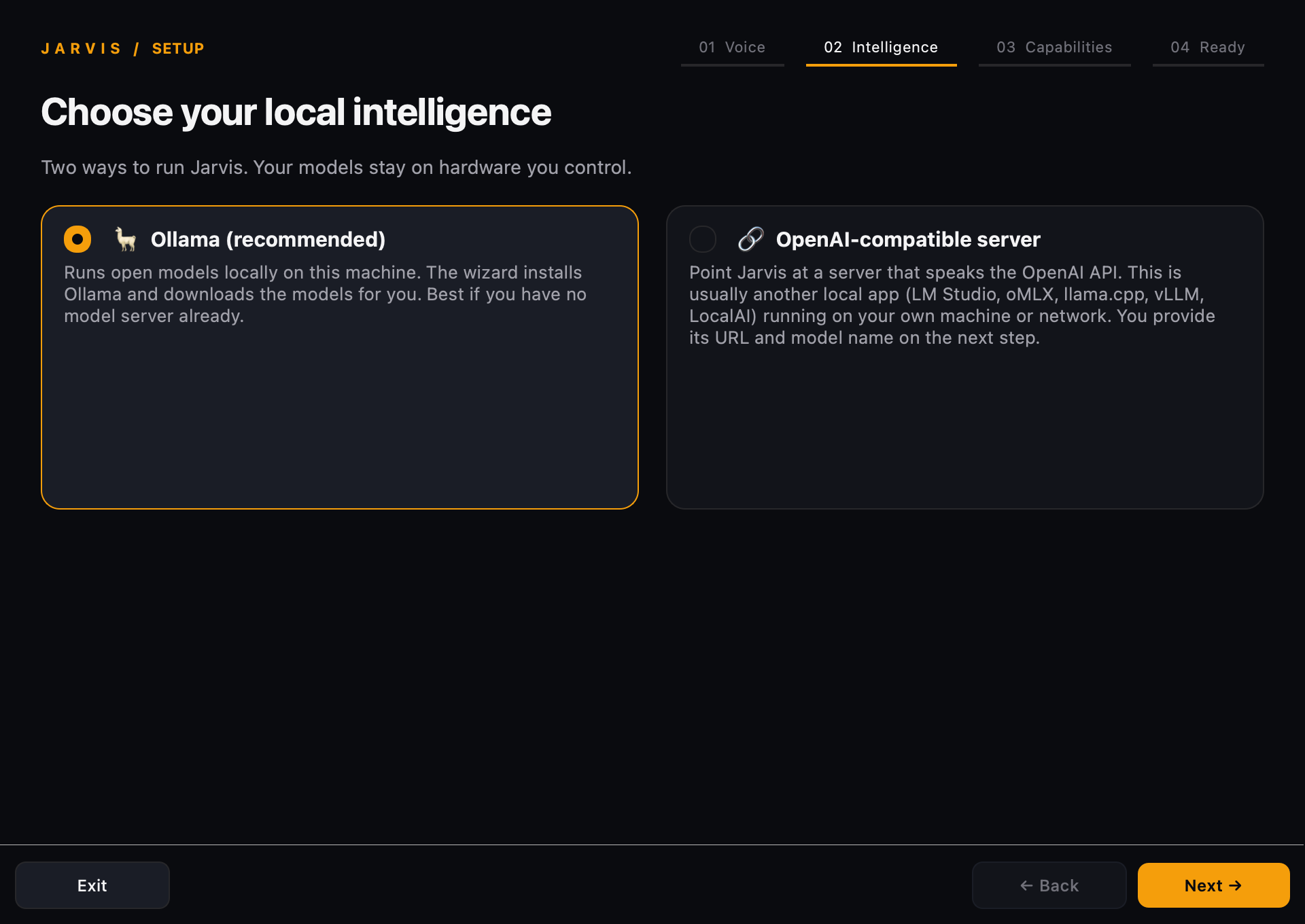
Choose the runtime that fits your machine. Setup walks through local models, speech and optional capabilities without requiring you to edit a configuration file.
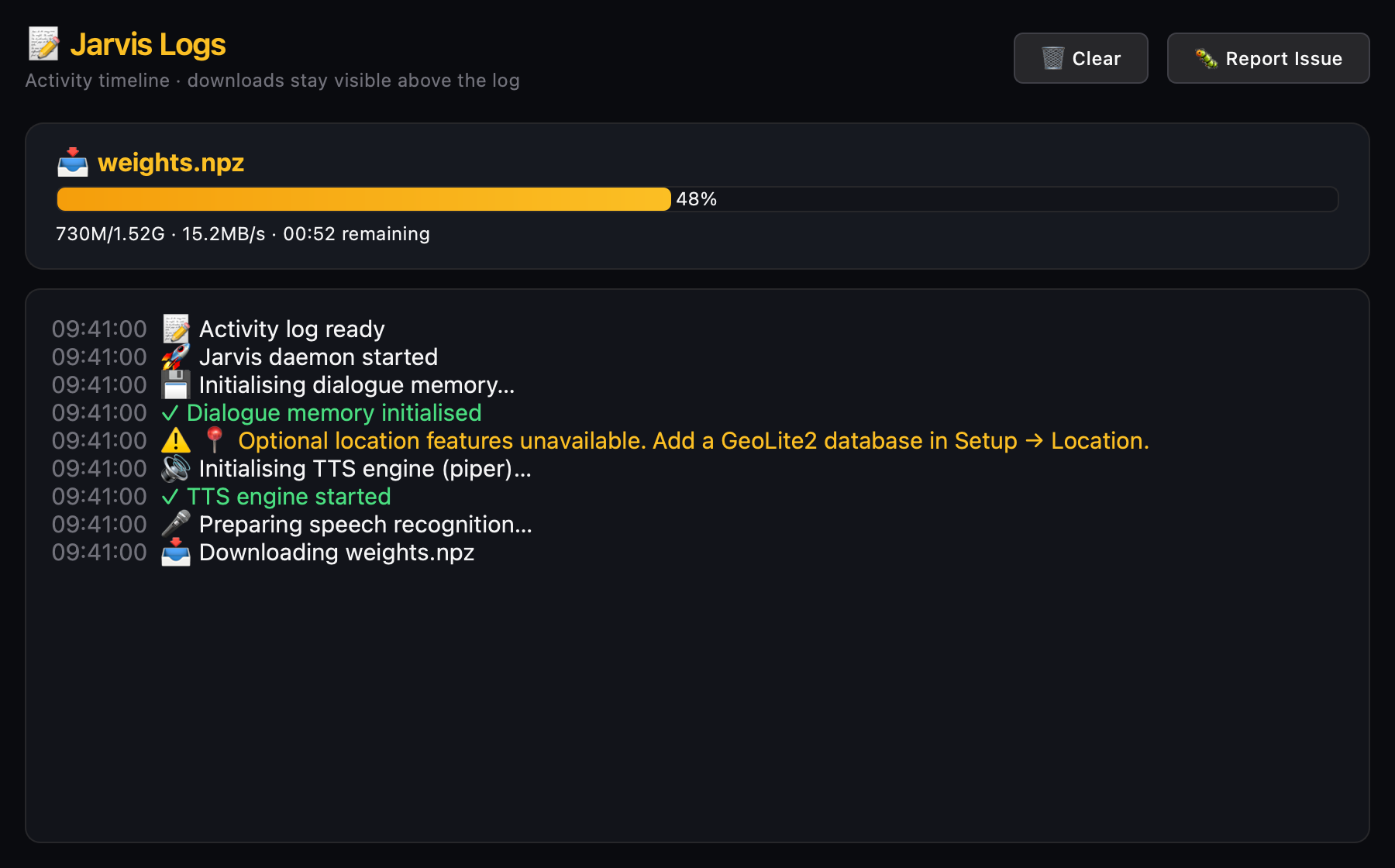
The activity timeline keeps ordinary events readable. Downloads have a separate card with transferred bytes, percentage, speed and remaining time when the downloader provides them. Loading and warmup are distinct stages.
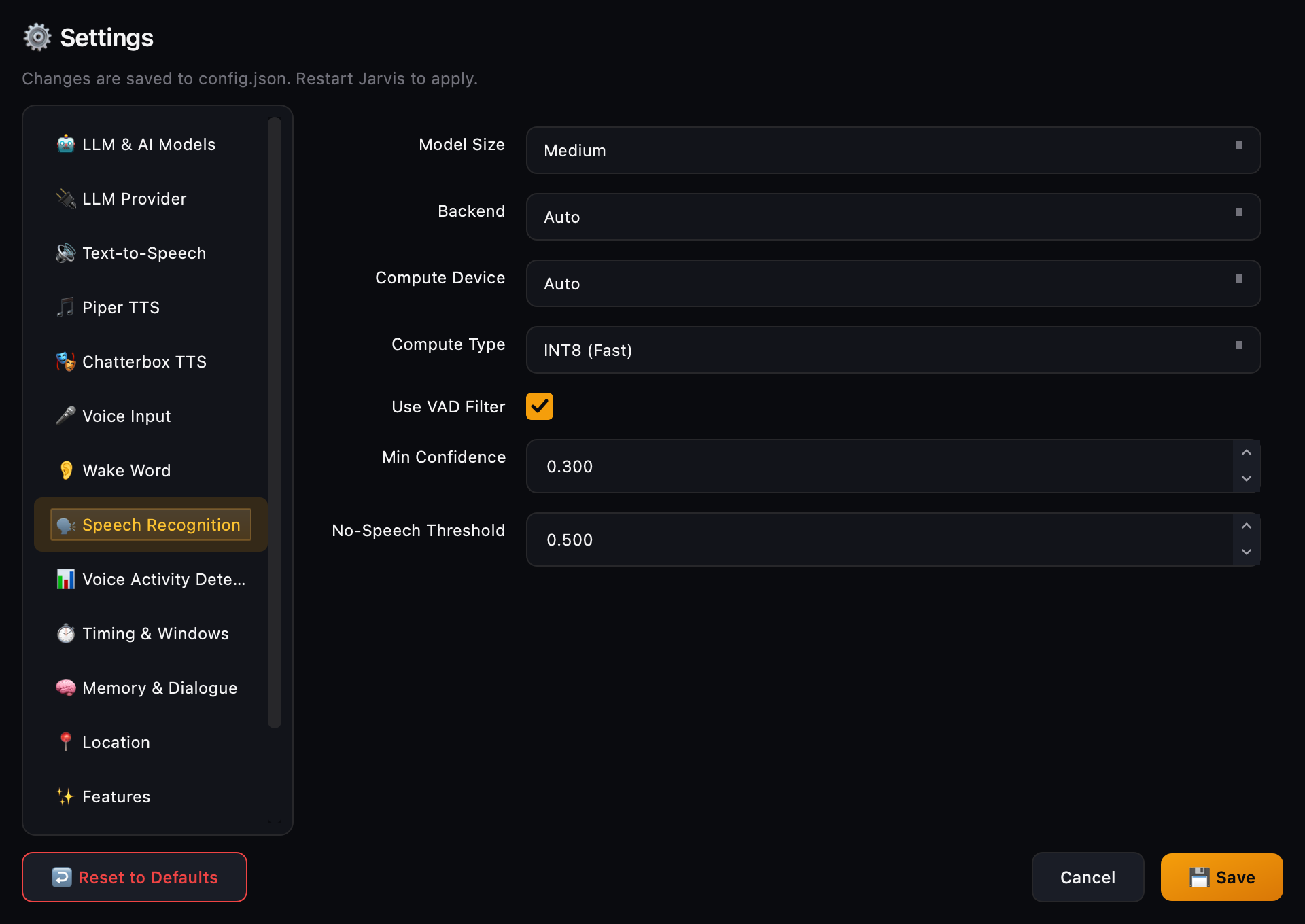
Choose models, tune speech recognition, configure tools and enable Low Power Mode from Settings in the tray menu.
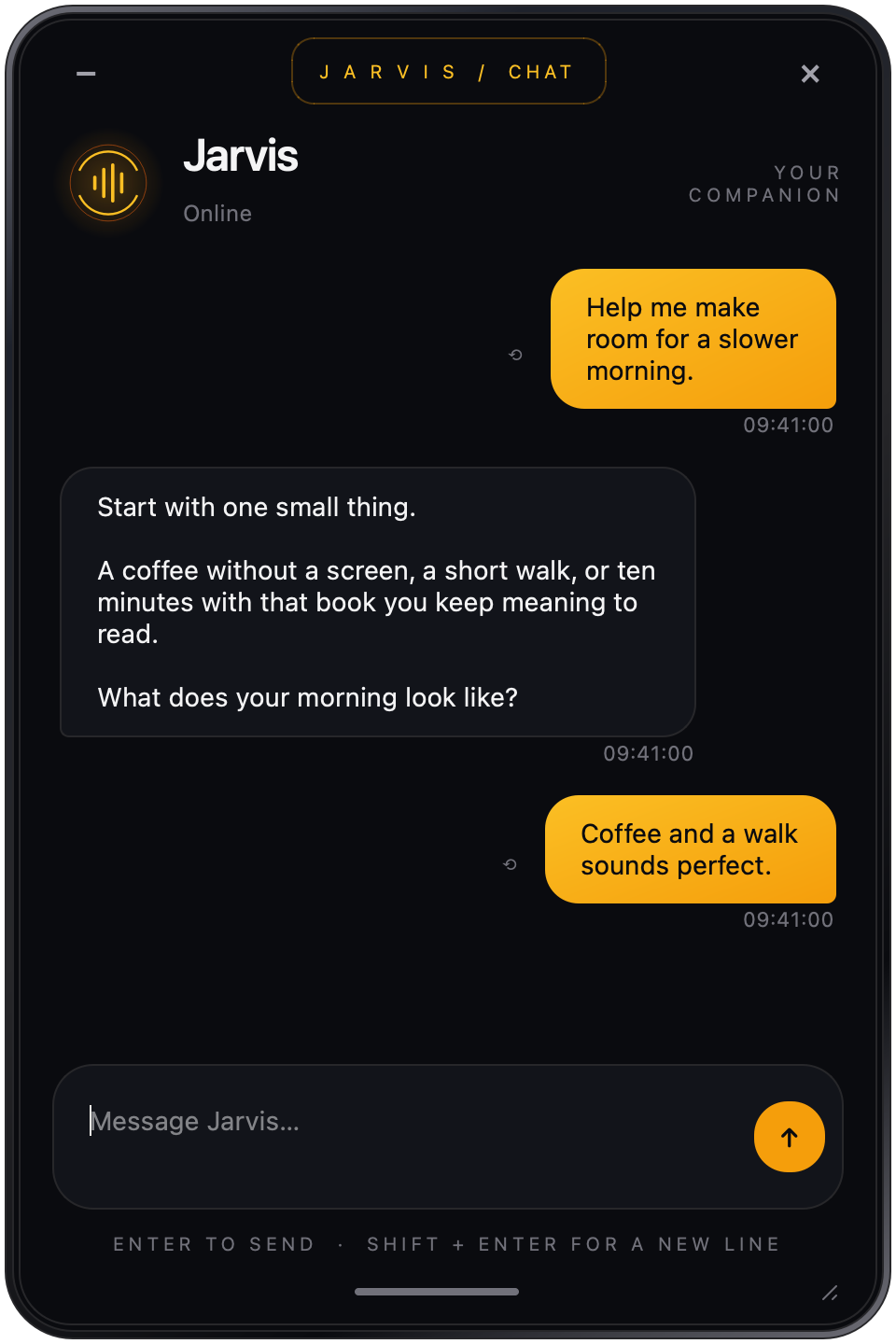
Open Chat for silent replies in the same conversation. Pause Voice Listening stops room transcription during meetings while chat and dictation stay available.
Jarvis is developed primarily on macOS. Windows and Linux behaviour may differ. See the evaluation results for tested capabilities.
Most people can use Settings from the tray. Advanced setups can edit ~/.config/jarvis/config.json.
Open the configuration guide →
The guide covers local model servers, speech recognition, Low Power Mode, voices, dictation, location, MCP integrations and troubleshooting.
| Platform | Default hotkey | | :--- | :--- | | Windows | Ctrl + Win | | macOS, where supported | Ctrl + Option | | Linux | Ctrl + Alt |
Hold to record and release to paste. Double-tap for hands-free recording. Optional filler-word removal, a custom dictionary and dictation history are available in Settings. macOS needs Accessibility permission; Linux requires X11, with limited Wayland support.
Connect MCP servers for browser automation, Home Assistant, GitHub, databases and more. Credentials and network access depend on the tools you choose. Review a server's permissions before enabling it.
Integration examples and server settings →
Select an available microphone in Jarvis Settings, or set a default recording input in your system Settings, then restart Jarvis. Jarvis keeps the selected input throughout startup and does not choose another microphone automatically when the default is unavailable.
Select the headset's microphone/input profile in Settings, not its playback device. Jarvis uses the selected input for listening and dictation, tries compatible mono, stereo and device-native capture formats, then converts multichannel input to mono for speech recognition. If that input is unavailable, select another microphone in Settings. If capture still fails, check that the microphone works in your system's recorder and share the error from Logs; Bluetooth driver/profile limitations can still prevent capture.
Check Logs for missing-callback or silent-input warnings. Verify the recording source and mute state in PipeWire/PulseAudio, and select a microphone rather than an output monitor. Set JARVIS_VOICE_DEBUG=1 for capture-level diagnostics. See the troubleshooting guide.
Open Logs from the tray. The progress card shows transfer details when available and elapsed waiting time when updates pause. After downloading, loading the model into memory is a separate step.
Warmup checks model loading with a small probe, not a full request. Voice intent detection has a separate timeout from chat. Check the limit shown in the log and your local server's responsiveness.
Enable Settings → Features → Low Power Mode. It skips LLM startup warmup and shortens Ollama model residency while keeping speech recognition ready. The first model request after idle may take longer.
git clone https://github.com/isair/jarvis.git
cd jarvis
macOS
bash scripts/run_macos.sh
Windows (PowerShell, with Micromamba)
pwsh -ExecutionPolicy Bypass -File scripts\run_windows.ps1
Linux
bash scripts/run_linux.sh
Running from source also enables Chatterbox TTS. Piper works in both packaged and source installations.
With the desktop dependencies installed in your Python environment:
PYTHONPATH=src python scripts/capture_readme_screenshots.py
The capture script uses the real widgets and illustrative data, isolates configuration in a temporary directory, and blocks network connections and background workers. It does not launch the daemon or use personal conversations. Keep screenshots on separate rows at readable widths.
Evaluation results · Report a bug · Contribute
Local AI is the default, not a paid upgrade. No cloud AI service is required.
~/.local/share/jarvis.Use a local model endpoint, download the required models first, disable web tools and leave MCP integrations empty. These settings turn off search and automatic location detection:
{
  "web_search_enabled": false,
  "wikipedia_fallback_enabled": false,
  "brave_search_api_key": "",
  "mcps": {},
  "location_auto_detect": false,
  "location_cgnat_resolve_public_ip": false,
  "location_enabled": false
}
These options are not a network firewall. Other online tools and app update checks may still use the network; enforce network restrictions separately if required.
Jarvis is free for personal use. For commercial use, get in touch.
If it earns a place on your desktop, help keep it growing.
→ →
→ →
→ →
→ →
→ →
→ →
→ →
→