
1
 →
→HKUDS/nanobot is an open-source project on GitHub, mainly written in Python. Your lightweight open-source personal agent. It currently holds 49,691 stars and 8,699 forks with 868 open issues, and was last pushed on 2026-10-30 (repository created 2026-02-01).
AI Homed tracks it on the AI Agent Skills board and on the AI AI Agent Skills list.

English | 简体中文 | 繁體中文 | Español | Français | Bahasa Indonesia | 日本語 | 한국어 | Русский | Tiếng Việt


Discord · X · WeChat 微信交流群 · Feishu
🐈 nanobot is an ultra-lightweight, open-source, self-hosted personal AI agent framework written in Python. Use it in a browser, terminal, or chat app to work with files, remember preferences, and schedule tasks. Connect a supported model provider or local model server to supply the AI.
| You want to... | Go to | |---|---| | Install nanobot with no terminal/config background | Start Without Technical Background | | Install quickly and get your first reply | Install and Quick Start | | Open the bundled browser UI | WebUI | | Connect Telegram, Discord, WeChat, Slack, Email, Mattermost, Linear, or another channel | Chat app guide | | Configure providers, fallback models, Langfuse, MCP, web tools, or security | Docs and Configuration | | Develop the browser UI | Install current source, then WebUI development and Contributing | | Integrate from Python or HTTP | Python SDK or Agent API | | Understand or extend the internals | Architecture, Contributing, and Provider extensions | | Deploy to the cloud or keep nanobot running as a service | Deployment |
nanobot can:
.docx), Excel (.xlsx), and PowerPoint (.pptx) files with built-in file tools, for tasks such as summarizing reportsYou need Python 3.11 or newer and access to a supported model provider or local model server. Model fees or local hardware requirements depend on the service you choose; nanobot does not supply a model account.
Choose the stable release for everyday use or current source for development and the latest features. This README describes current source; published documentation covers the released version.
New to terminals or model credentials? Follow Start Without Technical Background. Updating an existing instance? Follow updates and recovery for your installation method, backup steps and restart checks.
| Track | Install with | Update with | What runs |
|---|---|---|---|
| Stable | installer, uv, or pip | managed installer: WebUI update; other installs: original package tool | one released Python/WebUI/TUI version |
| Current source | editable Git checkout | git pull --ff-only + editable dependency sync | Python, WebUI, and TUI from that checkout |
Stable release: automatic setup (recommended)
The installer chooses an isolated Python environment and opens setup for you. The two commands below are the same installation method for different operating systems; run only the one for your system.
curl -fsSL https://raw.githubusercontent.com/HKUDS/nanobot/main/scripts/install.sh | sh
irm https://raw.githubusercontent.com/HKUDS/nanobot/main/scripts/install.ps1 | iex
The default command installs or upgrades the stable PyPI release. Fresh installations use a dedicated environment under ~/.nanobot/venv. On a fresh local desktop it opens the WebUI for model setup. That gateway keeps running after the browser or terminal closes; use the printed gateway stop command to stop it. SSH, headless, existing-config and older-release installs use terminal setup.
Existing installations keep their package manager, extras and constraints. An active ordinary venv remains an explicit target, not an installer-managed environment. The installer avoids system-wide pip and prints the command to reuse if nanobot is not on PATH.
To preview the plan without changing your environment, pass --dry-run.
curl -fsSL https://raw.githubusercontent.com/HKUDS/nanobot/main/scripts/install.sh | sh -s -- --dry-run
& ([scriptblock]::Create((irm https://raw.githubusercontent.com/HKUDS/nanobot/main/scripts/install.ps1))) --dry-run
If you prefer to inspect the script first, open scripts/install.sh or scripts/install.ps1.
Use this instead of the recommended installer when you already manage your own Python environment. These commands install the same stable nanobot-ai package; they do not launch setup.
uv: isolated CLI installation
uv tool install nanobot-ai
pip: activate your virtual environment first
python -m pip install nanobot-ai
Then run nanobot webui for browser setup, or nanobot onboard --wizard for terminal-only setup. For the Python SDK, install nanobot-ai in your application's virtual environment so the application can import it; a separate uv tool environment does not make the SDK importable there.
If pip reports externally-managed-environment, use the recommended installer, uv tool install nanobot-ai, pipx install nanobot-ai, or an activated virtual environment. Upgrade with the same method; for uv use uv tool upgrade nanobot-ai, and for pip use python -m pip install -U nanobot-ai.
Current source: development checkout
Clone the repository and install it in editable mode. A source install requires Git and Bun; Bun runs the matching TUI directly from the checkout instead of downloading an older release binary.
git clone https://github.com/HKUDS/nanobot.git
cd nanobot
python -m venv .venv
Activate it with source .venv/bin/activate on macOS/Linux or .venv\Scripts\Activate.ps1 in Windows PowerShell, then run:
python -m pip install -e .
After that, the normal commands are identical to a stable install. nanobot runs the TUI from this checkout, and nanobot webui rebuilds stale frontend assets automatically. After stopping the old instance, git pull --ff-only updates the Python, TUI, and WebUI source together; rerun python -m pip install -e . when Python dependencies change, then restart the instance. Contributors should also read CONTRIBUTING.md.
Published packages include the WebUI, and supported platform wheels also include the native TUI. A source-distribution install can fetch a checksummed, version-matched TUI archive—with its licenses, notices, corresponding application source, source offer, and relinking instructions—on first use.
Platform wheels include both the WebUI and the native terminal UI: macOS 13+ (Apple Silicon and Intel), glibc 2.17+ Linux (ARM64 and x64), and Windows x64. The x64 runtime requires SSE4.2. Pip selects the matching wheel; opening the TUI does not need a separate GitHub download or Bun installation. A source-distribution install on a supported target can use the matching checksummed GitHub release archive. On other platforms, use nanobot --classic or the WebUI.
[!IMPORTANT]
> If you want the newest features and experiments, install from source.
> If you want the most stable day-to-day experience, install from PyPI or with uv.
Pick one install method:
| Track | Install with | Update with | What runs |
|---|---|---|---|
| Stable | installer, uv, or pip | same installation method | one released Python/WebUI/TUI version |
| Current source | editable Git checkout | git pull --ff-only + editable dependency sync | Python, WebUI, and TUI from that checkout |
Verify the install:
nanobot --version
If nanobot is not on PATH, reuse the installer's printed command or run the Python executable from the existing installation with -I -m nanobot. For uv/pipx, locate that environment with the original manager. Do not use a temporary tool environment to manage an existing installation.
After installation, continue with Quick Start. Use the exact command printed by the installer if nanobot is not on PATH.
Open nanobot in your browser
If the installer already opened the WebUI, continue there. Otherwise run:
nanobot webui
Keep the launcher terminal open while using the browser. It starts or joins the shared local gateway and binds the first-run WebUI to localhost. If the browser does not open, copy the complete login link printed in the terminal, including everything after #; keep this credential private. For SSH or a headless host, use the remote-browser or terminal-only instructions below.
Your first three steps
1. Open Settings → Models and save a provider/model preset with your credential or supported sign-in. See model setup if you need the full steps.
2. Start a new topic and send Hello! to verify the model connection.
3. To try file work, put a copy of notes.txt in a practice folder, select that folder and Default Permission (workspace-only access), and ask: "Read notes.txt and write a short summary to summary.md." Open summary.md in that folder to check the result. See Your first file task.
A normal reply verifies the provider/model and browser connection. The file task separately checks the selected project and its file permissions. Attaching a file sends it to the conversation; it does not change the selected project folder.
Then describe your next goal in the same chat, for example: "I am already using the WebUI. Help me connect Telegram and allow only my account." An enabled nanobot-document skill can consult the documentation bundled with your installation; see Continue with nanobot for examples, explicit invocation, and availability.
After installing nanobot on the server, start its WebUI without opening a server-side browser:
nanobot webui --no-open
Keep that server terminal running. In a second terminal on your own computer, forward the default WebUI port through SSH:
ssh -N -L 127.0.0.1:8765:127.0.0.1:8765 user@SERVER
Replace user@SERVER with your SSH login and leave the tunnel open. In your local browser, open the complete login link printed by the server launcher, preserving its # fragment. It uses http://127.0.0.1:8765, which now reaches the server through the tunnel. Complete Settings → Models and send Hello!. If local port 8765 is occupied, use another local port in the tunnel and change only the port in the browser link. Keep the server listener on localhost. For Docker, public endpoints, or service management, see Deployment.
If a model is not configured yet, use the terminal wizard:
nanobot onboard --wizard
Check one reply without opening the browser:
nanobot -m "Hello!"
For interactive work, open the terminal client:
nanobot
The native TUI uses the launch directory as its project workspace and shares saved conversations and the local gateway with the WebUI. The explicit nanobot agent form remains available for compatibility.
/ to discover commands, /sessions to switch conversations, or @ to mention an app, MCP server, or saved session.Ctrl+V or Alt+V, and use $ to complete skill references./diff to inspect file changes, /context to inspect session context, or /branch to continue from a completed reply in a new session.Enter to send. While nanobot is working, Enter sends now and Tab sends after the current response. Press Shift+Enter to add a newline (Ctrl+J works in terminals that cannot distinguish modified Enter keys)./detach to promote the gateway to background mode and close the TUI while work continues.--session to resume one and --workspace to choose another project workspace. See the CLI reference for session branching, diffs, history, shortcuts, gateway lifecycle, and compatibility options.
State a specific preference in your chat, for example: "For release notes, use concise bullet points." To consolidate it now, send /compact and then /dream, waiting for each to finish, and review /dream-log. Check the actual changes to USER.md or memory/MEMORY.md in the configured agent workspace, then test reuse in a new topic in the same instance. Dream may decide that no durable change is needed; a conversational acknowledgement alone does not prove the preference was saved. See Save and Check a Preference for file access, correction, and restoration steps.
Use a regular topic for a bounded objective with a clear completion condition, for example:
/goal Review this project's tests and list the smallest missing test case.
The goal lets nanobot continue work across model turns while the gateway runs; a scheduled automation instead starts a turn at specified times. Use /stop to interrupt the current work, and ask nanobot to cancel the goal if you want to abandon it. Keep the gateway running for unattended work using the background or service options below.
After a gateway restart, reopen the original topic and review saved results before explicitly continuing any interrupted work. Recovery does not blindly replay uncertain tool actions. See the long-running agent guide for starting conditions and related automation options.
After model setup, keep channels and automations running when interactive launchers close:
nanobot gateway --background
This starts or promotes the shared gateway to persistent background mode. Fresh official-installer environments already use that lifetime when you open nanobot webui; other Python installations can explicitly use nanobot webui --detach. Channels and automations remain active after local clients exit. Complete first-time model setup in the WebUI, and use the gateway commands below to manage the same instance.
From the TUI, /detach does the same before closing that client. Background mode does not configure startup after a machine reboot or restart after a crash; use an OS-managed service for that. Interrupted subagent tasks are not automatically relaunched after a restart, and missed scheduled times are not replayed; see subagent recovery and automation delivery.
Manage the background gateway with:
nanobot gateway status
nanobot gateway logs
nanobot gateway restart
nanobot gateway stop
To reopen the browser, run nanobot webui against the same instance and use its complete printed login link.
Use this once a model is configured and you want to run the gateway directly in the current terminal:
nanobot gateway
It skips guided WebUI setup and browser opening. The WebUI remains available when its channel is configured. Use nanobot gateway --background for a detached process, or follow Deployment for startup and supervision by the operating system.
If nanobot worked for you, a star on GitHub is the simplest way to support the project.
Render — one click
Deploy nanobot's gateway and bundled WebUI from the repository's ready-to-use Blueprint:

Render will ask for ANTHROPIC_API_KEY and a private NANOBOT_WEB_TOKEN, then provision persistent storage for sessions, memory, and WebUI history. Persistent disks require a paid Render service.
Self-host
Prefer your own infrastructure? Follow the deployment guide for Docker, Docker Compose, Linux services, and macOS LaunchAgent setup.
The WebUI ships inside the published wheel with no separate frontend build. It is the browser workbench for persistent topics, temporary chats, visible agent activity, workspace controls, Apps, Skills, Automations, and settings. Start it with nanobot webui. WebUI access grants administration of the same agent instance; share it only with trusted operators. See Sharing access.
The screenshots below show the current source WebUI with example conversations, illustrative token counts, and paused schedules.

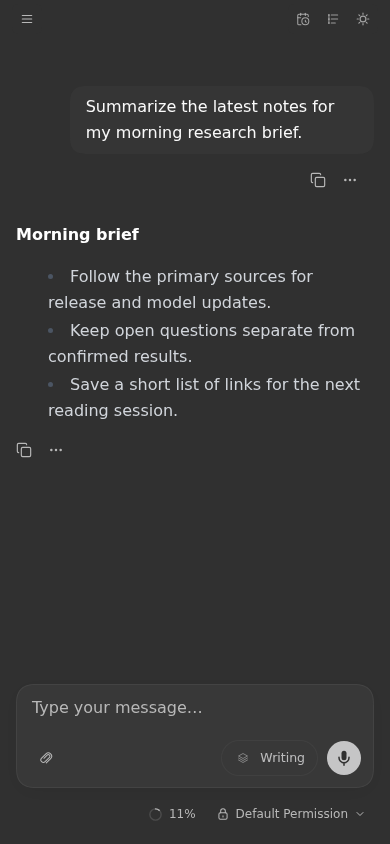
Use it to:
Group up to four conversations and arrange them in columns, rows, a grid, or a main pane with supporting panes. Each topic keeps its own history. Select another topic from the @ menu, or drag it into the composer, to let the agent read its context and coordinate work across sessions.
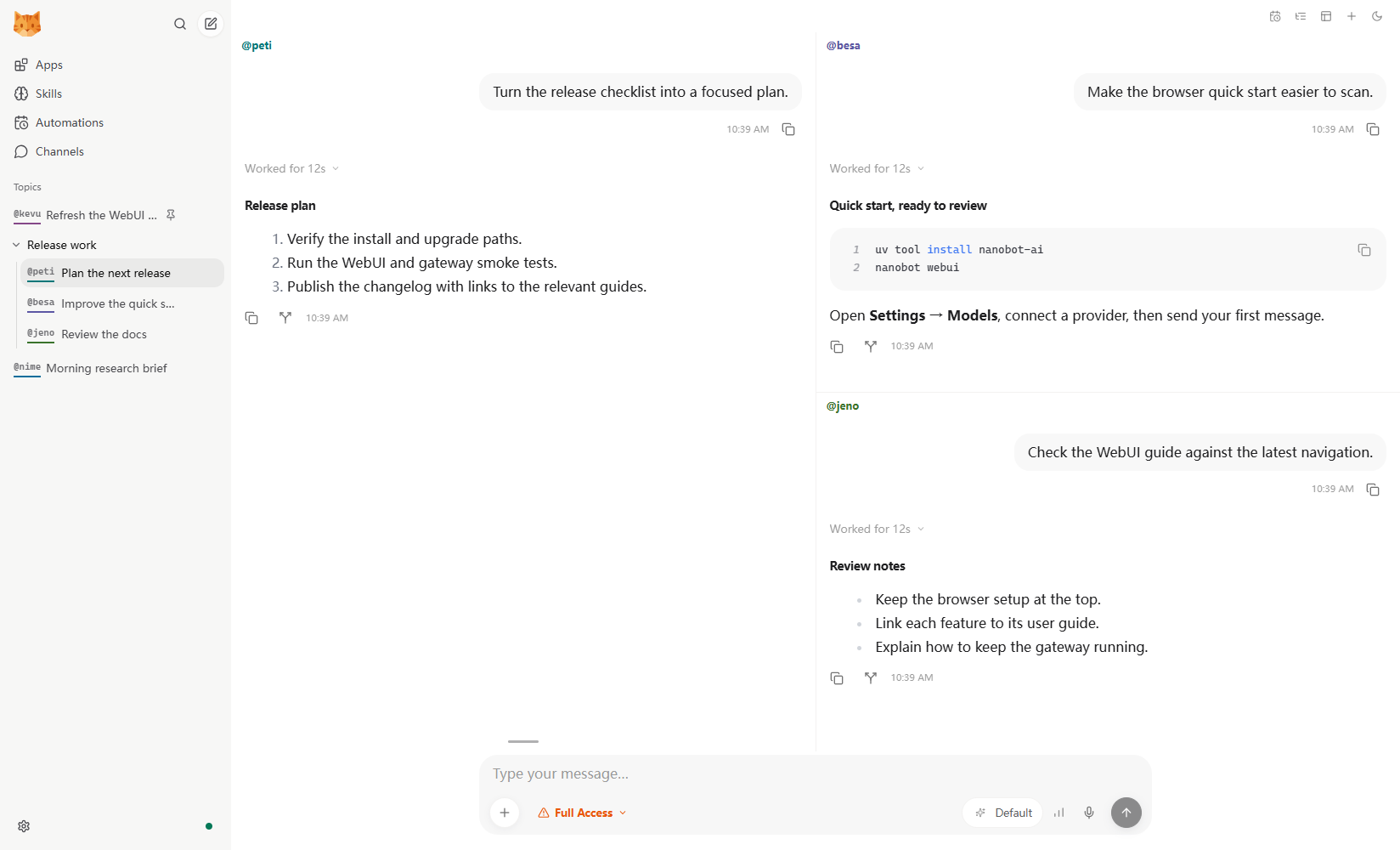
Choose a project, access mode, and model for each task. Topics separate conversation history; project folders select where file work happens. Neither creates separate long-term memory: one instance shares its agent profile, memory, and skills across projects. Use separate instances when client data or preferences must sta
→ →
→ →
→ →
→ →
→ →
→ →
→ →
→