
1
 →
agent0ai/agent-zero is an open-source project on GitHub, mainly written in Python. Agent Zero AI framework It currently holds 19,697 stars and 3,857 forks with 145 open issues, and was last pushed on 2026-11-01 (repository created 2024-06-10).
AI Homed tracks it on the Today's Trending board, currently at rank #41 with 38 new stars today.

Agent Zero is an open-source AI agent with its own Linux workspace. It can research, write code, create and work with documents using a terminal, browser, and desktop apps. It runs in a sandbox, but you can step in, and connect it to local files on your own computer when needed.
Get started · Installation guide
Quick Start | Why Agent Zero | Try These First | Deep Dives | Docs
Choose A0 Launcher for a desktop computer, or A0 Install for a server or shell-only environment.
You will need a supported AI account, a provider API key, or a local model server to start chatting.
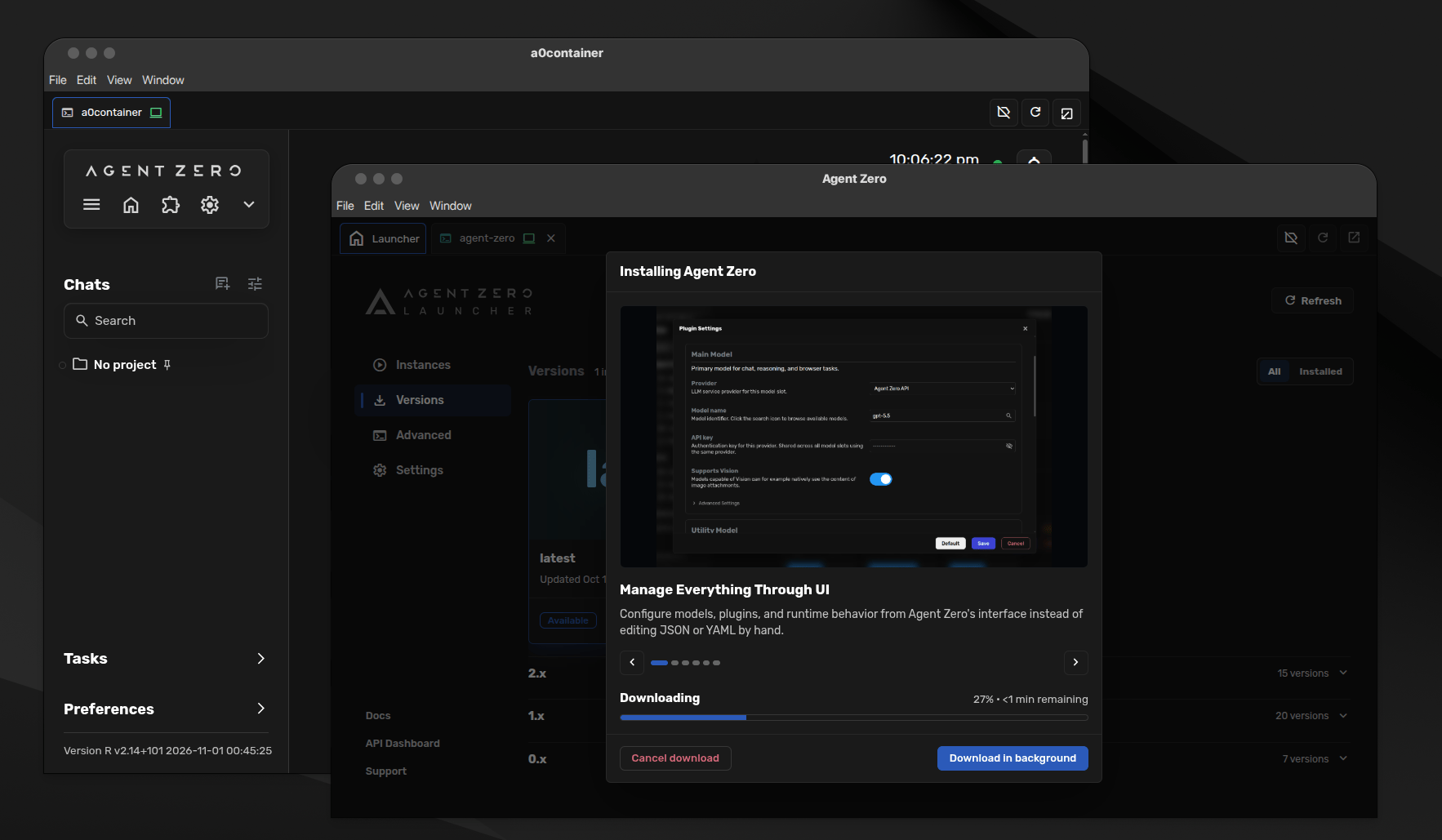
A0 Launcher is recommended for desktop computers. It guides you through Docker setup, creates your Agent Zero instance, and opens the Web UI.
Download A0 Launcher v1.9 for your operating system and processor:
| Platform | Recommended download | Other processors | | --- | --- | --- | | Windows | Windows x64 · Intel / AMD | Windows ARM64 | | macOS | Apple Silicon · M-series Macs | Intel Macs only | | Linux | Linux x64 · Intel / AMD | Linux ARM64 |
1. Open Launcher and follow any Docker setup prompt. 2. Create an Instance, a separate Agent Zero setup. Choose Download Agent Zero or Run Agent Zero, keep the default version and persistent workspace, then click Create. Wait for Running and click Open UI.
Continue with your first message, or see the Installation guide for screenshots and help.
A0 Install is recommended when you have shell access but no graphical desktop, such as a server or an SSH session. It runs interactively in your terminal, helps set up Docker where needed, and creates an Agent Zero instance with a persistent workspace.
curl -fsSL https://bash.agent-zero.ai | bash
irm https://ps.agent-zero.ai | iex
Follow the prompts, then open the Web UI and send your first message. For a local install, use the printed URL. On a remote server, localhost refers to that server; follow the VPS guide for access and authentication before connecting from a browser on your own computer.
For setup without installer menus, see scripted installation and the full installer options.
1. Send a message from the welcome screen. Try: "Create a one-page plan for a 15-minute team kickoff. Save it as a Markdown file and give me a link." 2. Connect a model when the chat asks. Choose Cloud provider, AI account, or Local model, then select a Main model for conversations and a Utility model for summaries and chat names. They can use the same provider. 3. Click Finish setup, then Continue to close setup. Your original message resumes in the same chat; watch for the reply and open the returned file link.
The Codex guide covers ChatGPT account sign-in. If your provider is missing, use the provider-plugin link to find it in the Hub; the OpenCode Go guide walks through installation.
docker run -d -p 127.0.0.1:5080:80 -v a0_usr:/a0/usr agent0ai/agent-zero
Open http://localhost:5080 on the Docker host, then send your first message. The a0_usr volume keeps your data when the container is replaced. Keep backups too. This command makes the Web UI available only on the Docker host; see the Installation guide for other setups.
5080 with a free port and use that port in your browser URL.Bring chats from Pi, Hermes Agent, or Claude Code into Agent Zero with Migrate Agents. Preview the import before saving it, then continue the conversation here. Project files are copied separately; importing a chat does not move its workspace.
| What you can do | Where to start | | --- | --- | | Use desktop apps and work on documents together | Desktop and Cowork | | Browse the web and point out exactly what needs changing | Browser and annotations | | Keep each job's files, instructions, and memory together | Projects | | Add providers, tools, and integrations | Plugin Hub | | Work on files on your own computer | Launcher Host access, or A0 CLI | | Adapt the agent to how you work | Agent Profiles and Skills |
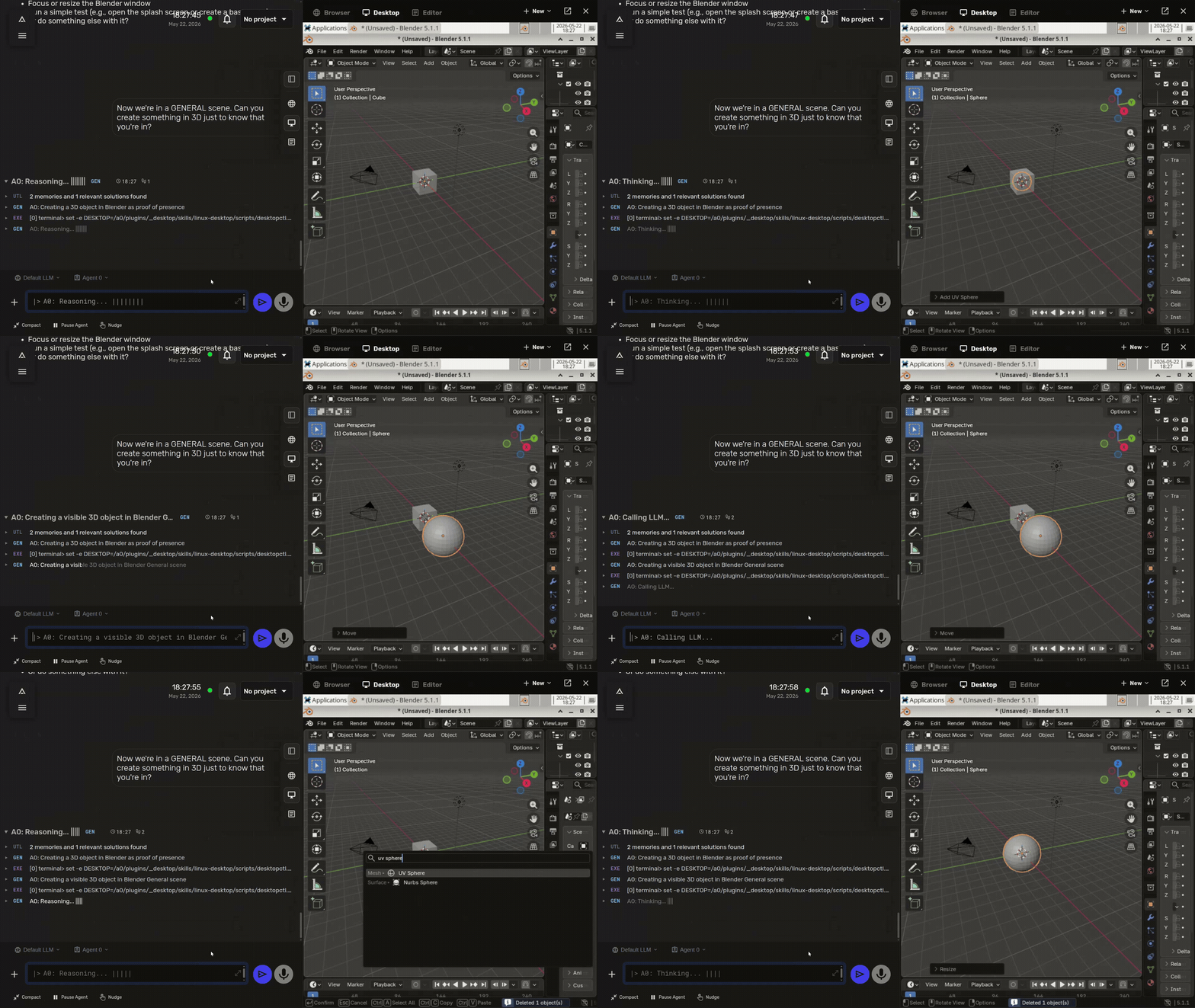
The Canvas is the panel beside your chat for browsers, documents, and the desktop. Open Desktop there to see Agent Zero's Linux workspace. It can use Blender, a terminal, a file manager, and other desktop apps. You can watch and take over with your own mouse and keyboard.
See the Desktop guide for the walkthrough, prompt examples, and how Desktop differs from Browser.
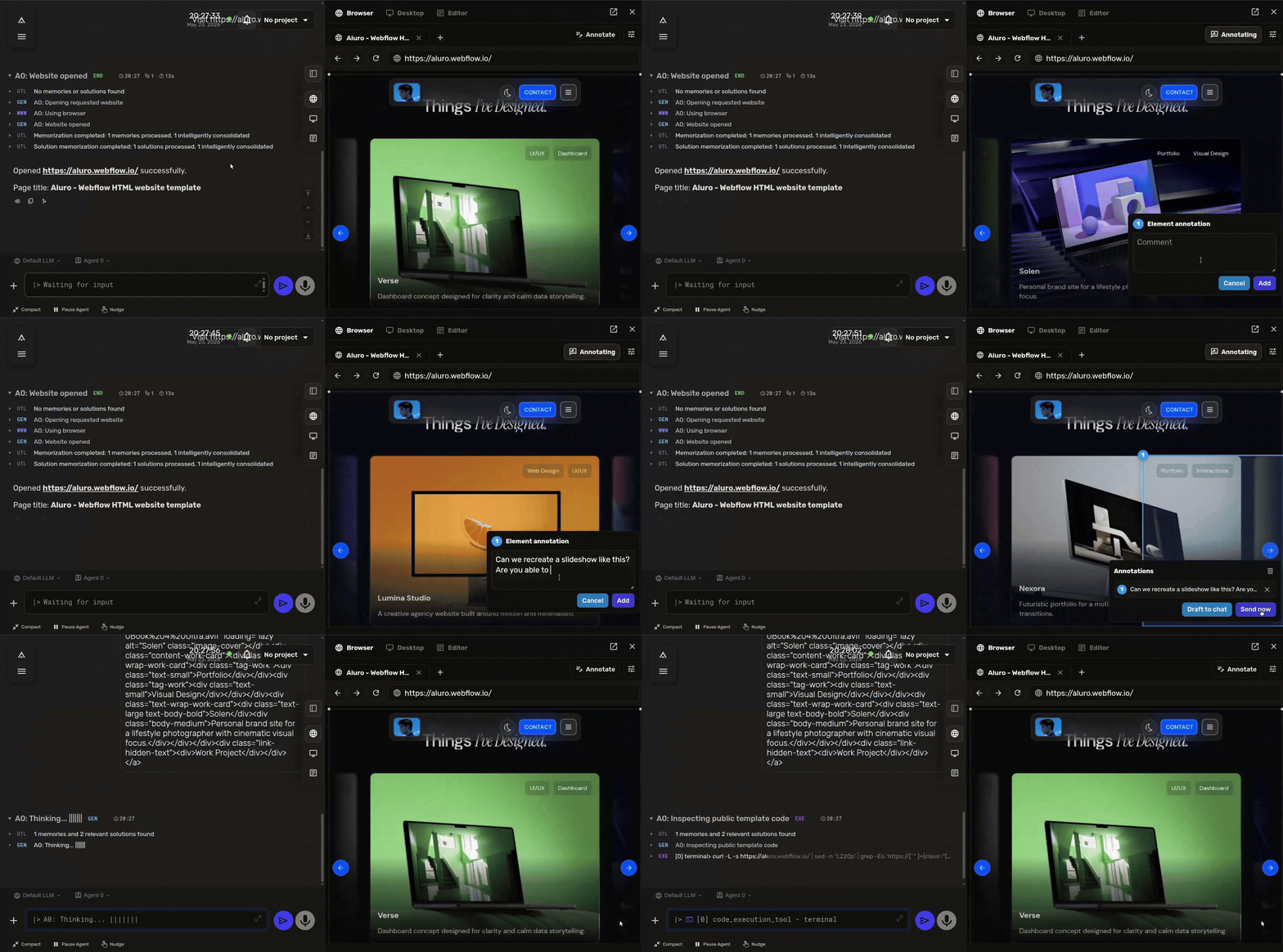
The built-in Browser opens pages, fills forms, uploads files, and takes screenshots. Open it in the Canvas to follow along. In Annotate mode, click a page element to inspect it, request a change, capture a design reference, or leave a comment for the agent.
Browser history keeps screenshots of important steps. You can also install Chrome extensions or connect a browser on your own computer through Launcher Host access or A0 CLI.
See the Browser guide for screenshots, settings, host-browser setup, and troubleshooting.
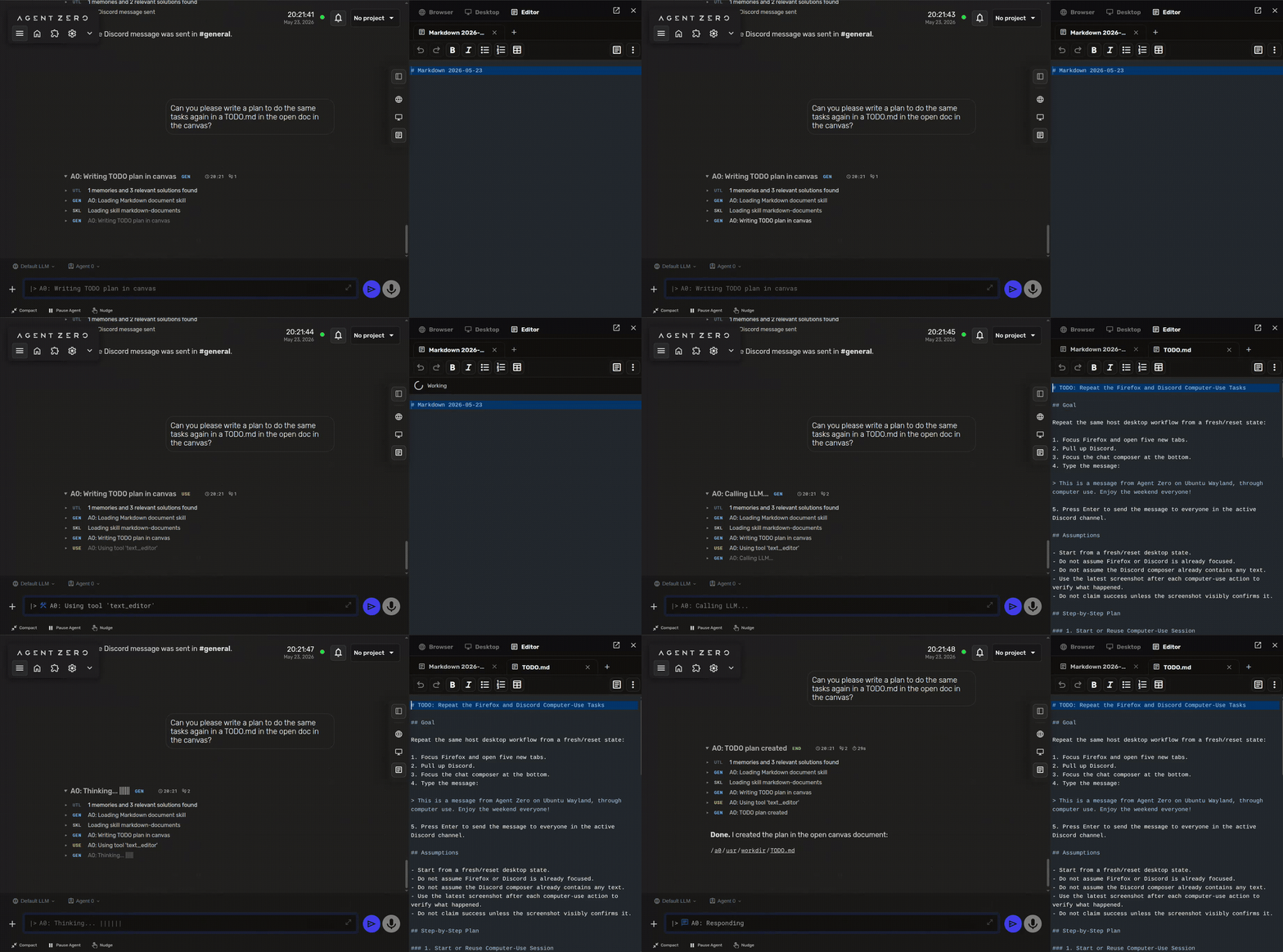
Ask Agent Zero to write a plan or meeting notes as a Markdown file, then open it in the Canvas editor. You can type, format text, and edit tables while the agent works on the same document.
Use the Desktop toolbar to create a Writer document, spreadsheet, or presentation. Agent Zero can work on these LibreOffice files alongside you and save the result as ODT, ODS, or ODP.
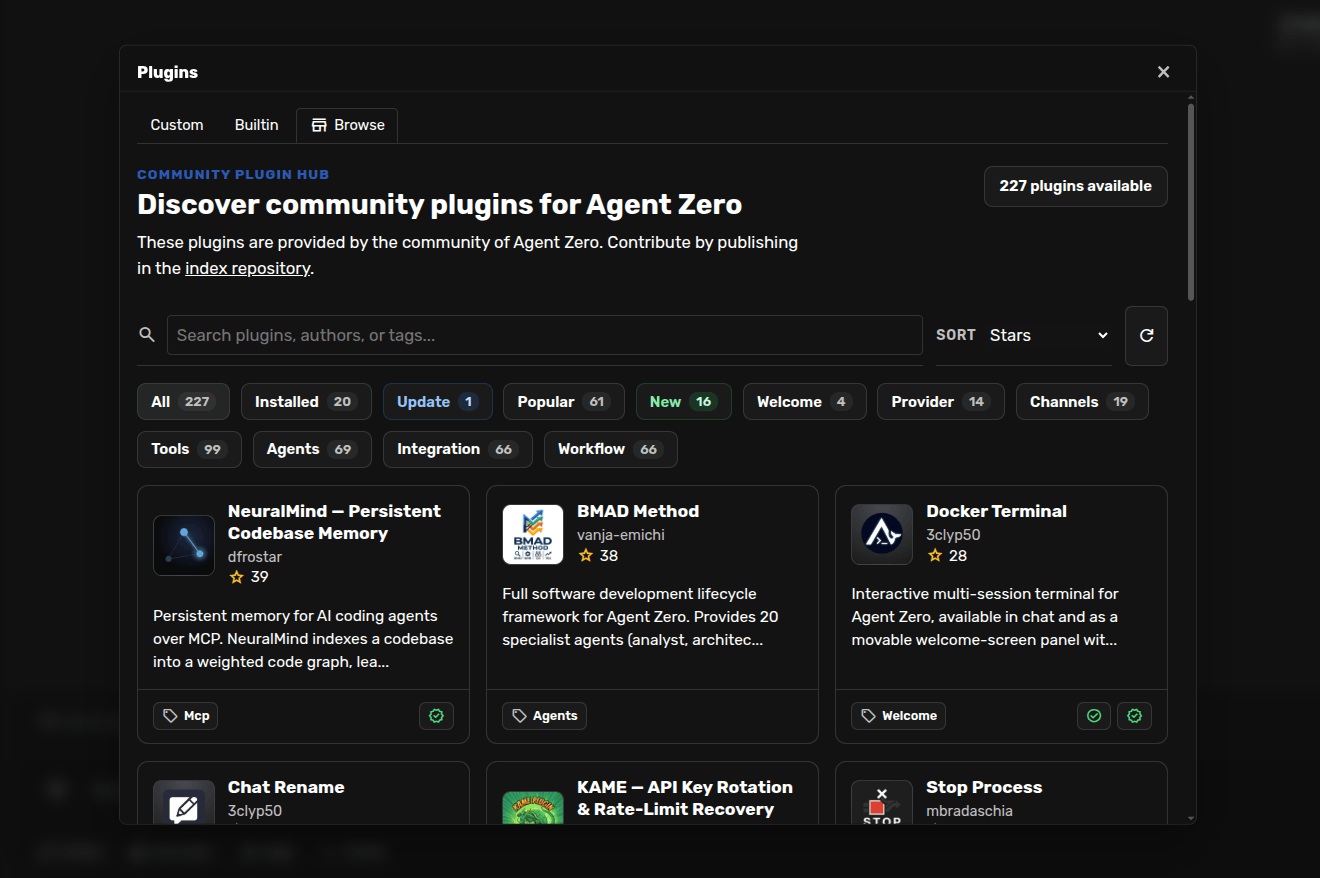
Open the Plugin Hub to find community providers, tools, memory systems, integrations, and UI additions. Read a plugin's description and setup instructions before installing it. You can also build and publish your own.
See the Plugin Hub guide, the Create a Small Plugin tutorial, and the MCP setup guide for connecting external tools.
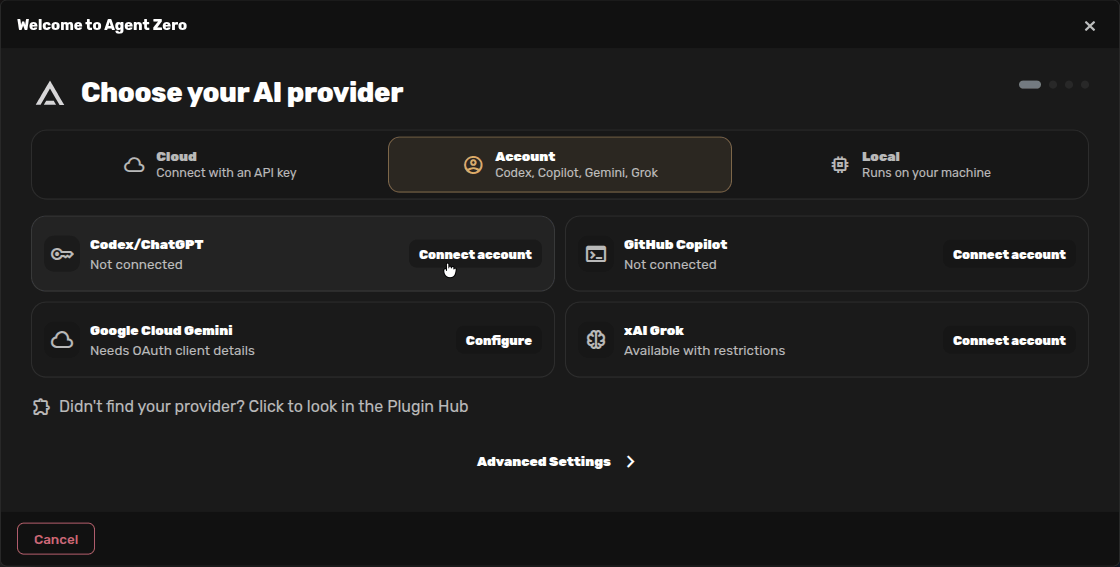
Sign in with your ChatGPT account, choose Codex models, and continue in Agent Zero. Enable device code sign-in in ChatGPT, open Account in Agent Zero's onboarding, and connect Codex/ChatGPT. After you authorize on OpenAI's page and choose Main and Utility models, your first message resumes in the same chat.
Follow the Codex account setup guide for the complete walkthrough with screenshots.
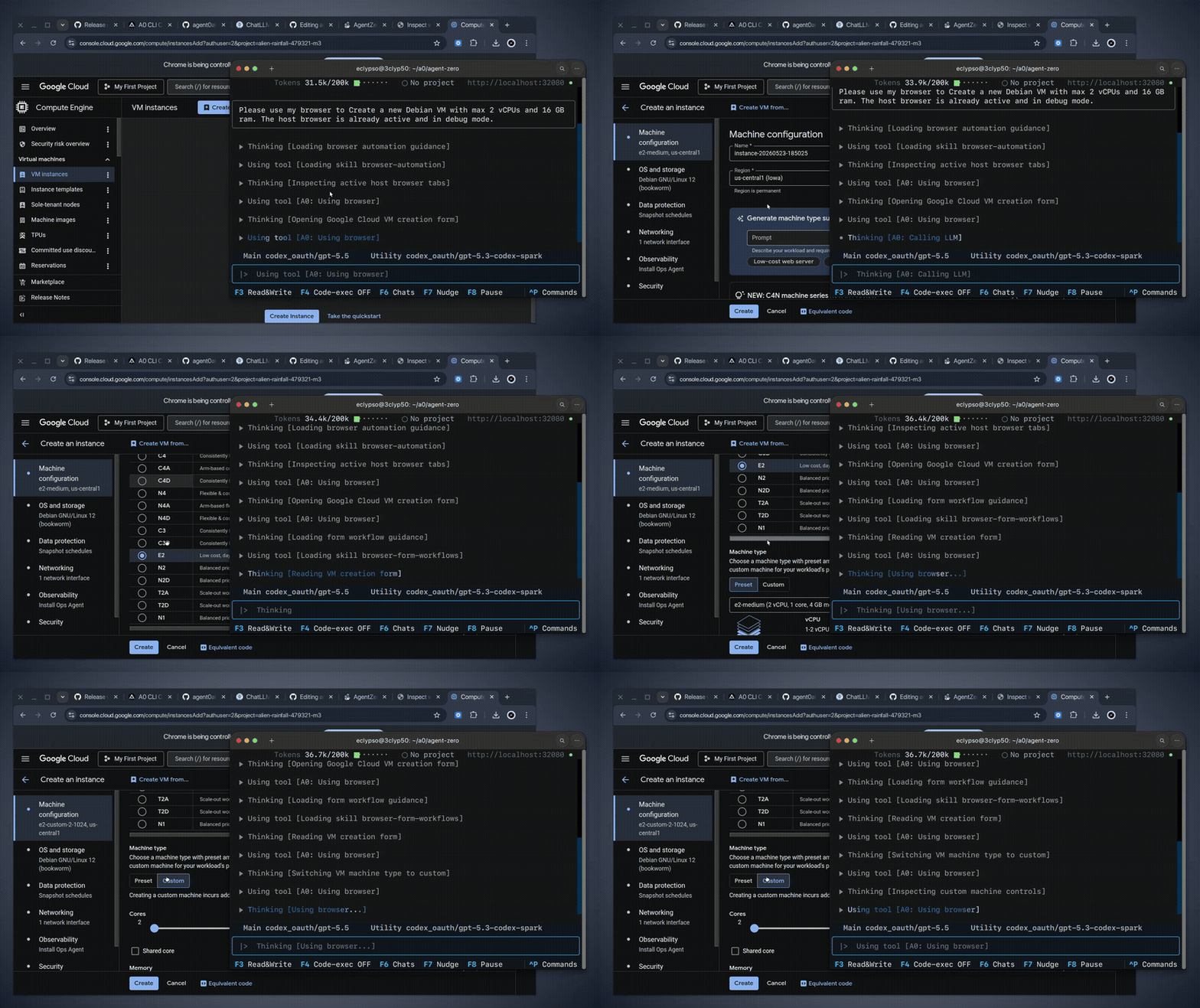
The A0 CLI Connector connects your terminal to a running Agent Zero instance. It can give the agent access to files, commands, and a browser on your own computer.
Using Launcher? Its optional Host access controls manage the supporting CLI for you. Follow the Host access guide to choose what to allow. Install A0 CLI yourself when you want to chat from a terminal or connect another computer.
Install the connector on the machine you want Agent Zero to work on, not inside the Agent Zero container.
curl -LsSf https://cli.agent-zero.ai/install.sh | sh
irm https://cli.agent-zero.ai/install.ps1 | iex
Then run a0 to connect your terminal to an existing Agent Zero instance. It can usually discover a local instance automatically, or you can point it at a remote URL hosted somewhere else, such as a VPS or tunnel.
For full setup, see the A0 CLI Connector guide (or the in-repo guide).
Projects isolate workspaces, instructions, memory, secrets, knowledge, repositories, and model-preset choices. Clone a public or private Git repo into a project and give the agent context that belongs to that work alone.
Skills can be loaded on demand by Agent Zero, or pinned from the chat input when you want a specific procedure to stay active.
Agent Profiles change the broader working style of the current chat.
Model Presets are named shortcuts for model setups, so you can quickly switch between fast, balanced, cheap, local, or high-power model choices.
Agent Zero can delegate parts of a task to other agents. Each works with its own instructions and conversation, then reports back. This can help divide research, coding, and review work.
Almost nothing is hidden. Prompts live in prompts/, tools live in tools/ or plugins, and built-in behavior can be inspected, changed, replaced, or extended.
You can add tools through plugins or MCP, connect other agents through A2A, and give each project its own instructions and settings. See DeepWiki for how the parts fit together.
Time Travel keeps snapshots of Agent Zero's workspace under /a0/usr. See what changed, compare files, inspect a past state, and roll back when needed.
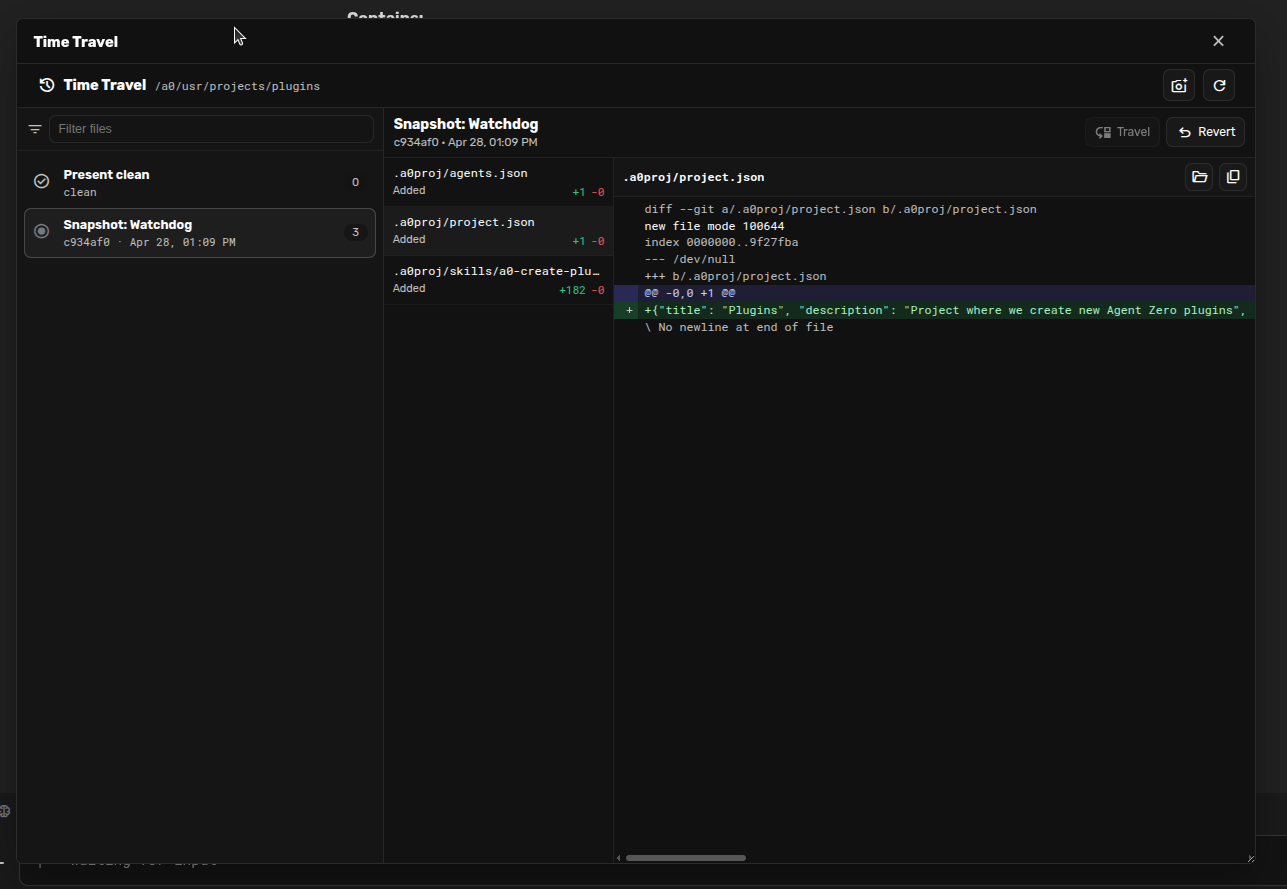
It is not a replacement for Git or backups. It is a practical safety layer for the workspace where agents are actively creating and editing files.
a0 to work in a local repository, or clone it into an Agent Zero project.| I want to... | Start here | | --- | --- | | Install or update Agent Zero | Installation | | Learn the UI and basic workflow | Quickstart | | Connect your ChatGPT account and use Codex models | Codex account setup | | Add OpenCode Go or another provider plugin | OpenCode Go setup | | Bring chats from Pi, Hermes, or Claude Code | Migrate Agents | | Browse, annotate, and use Browser screenshots | Browser guide | | Use the Linux desktop and LibreOffice | Desktop guide | | Work on files and run commands on my computer | Launcher Host access or A0 CLI | | Use projects and Git workspaces | Projects guide | | Create a small plugin | Create a Small Plugin | | Add or remove active skills | Skills guide | | Create or switch Agent Profiles | Agent Profiles | | Create or switch Model Presets | Model Presets | | Manage and curate memories | Memory guide | | Learn the everyday chat controls | Usage guide | | Configure MCP or external tools | MCP setup | | Understand the architecture and internals | DeepWiki for Agent Zero | | Build an advanced extension | Extensions | | Contribute to the project | Contributing | | Troubleshoot problems | Troubleshooting |
Agent Zero is built for people who want to understand and shape their tools.
You can help by improving docs, creating skills, publishing plugins, testing model/provider setups, reporting bugs, sharing workflows, or contributing core improvements. Start with the Contributing guide, browse the Plugin Hub, or bring ideas to Discord.
Agent Zero is available under the MIT License.
Agent Zero is powerful because it can use a real environment.
→ →
 →
 →
 →
 →
 →
 →